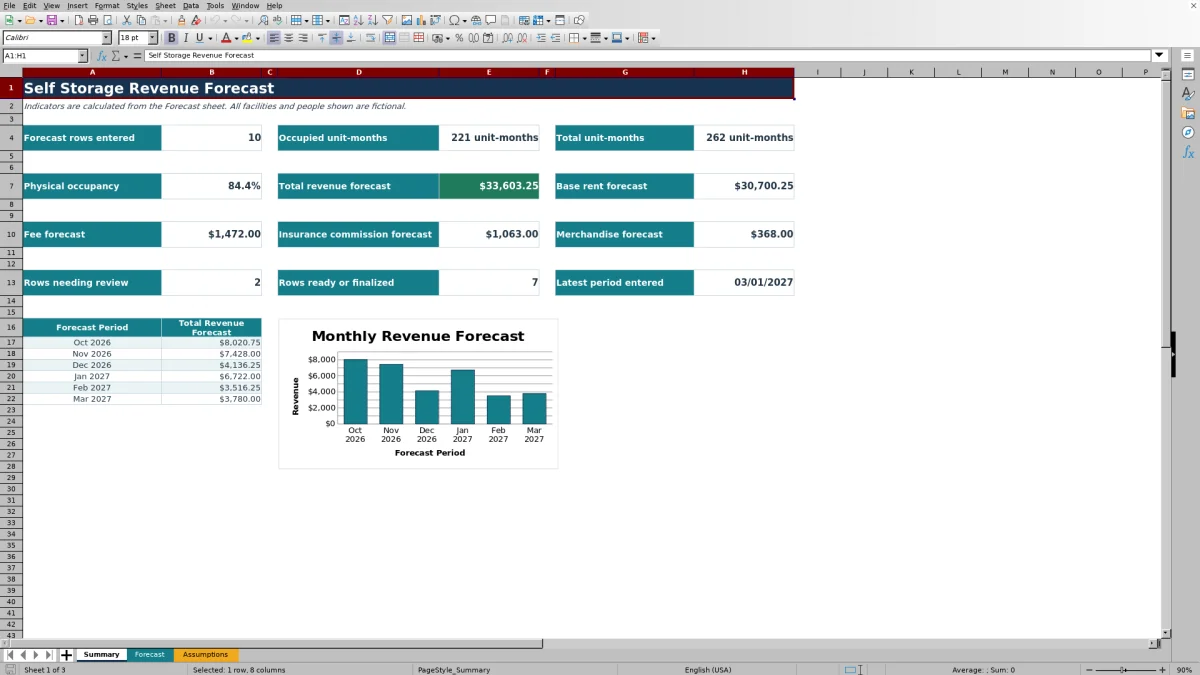
This self storage revenue forecast Excel workbook models monthly revenue by facility and unit type using total units, occupied units, and editable rate assumptions. It calculates occupancy, base rent, fees, insurance commissions, merchandise, and total forecast revenue.
Use the XLSX to organize up to 120 forecast rows, assign owners and statuses, set review dates, and identify entries that need attention. Its summary consolidates unit-months, occupancy, revenue categories, workflow counts, and a six-period revenue trend.
How this template can help
- Translate occupied-unit assumptions into monthly base rent, fee, insurance commission, merchandise, and total revenue forecasts.
- Use default rates by unit type while retaining the option to enter a row-level rent override.
- Identify incomplete entries, invalid occupied-unit counts, high occupancy assumptions, and passed review dates.
- Monitor portfolio occupancy, forecast revenue, workflow counts, and six consecutive forecast periods from one summary.
What the workbook contains
How to get started
1. Update the assumptions
Open the Assumptions sheet and confirm the monthly rates for each unit type. Set the unit limits, occupancy threshold, and permitted planning date range.
2. Enter monthly forecast rows
On the Forecast sheet, select a facility and unit type, enter the first day of the forecast month, and add total and occupied units. Enter a rent override only when the default unit-type rate should not apply.
3. Complete the workflow fields
Assign a forecast owner, choose Draft, Ready for Review, or Finalized, enter a review due date, and add notes when useful. Resolve any message shown in the Review Flag column.
4. Read the summary
Use the Summary sheet to check unit-months, physical occupancy, each revenue category, total revenue, flagged rows, workflow progress, and the six-period revenue chart.
Structure a Monthly Self Storage Revenue Forecast
The workbook uses a row-level structure: each forecast row represents one facility, one unit type, and one monthly period. Operators enter total units and occupied units, while formulas calculate occupancy and the related revenue categories.
Facility, unit type, owner, and status lists help standardize entries. Date and numeric validation rules also restrict forecast periods, unit counts, rent overrides, assumption rates, and review dates to the planning boundaries stored in the workbook.
Connect Occupancy to Revenue Categories
The revenue bridge begins with occupied units. Base rent equals occupied units multiplied by the entered rent override or, when that cell is blank, the default base rent for the selected unit type. Fees, insurance commissions, and merchandise use their corresponding per-occupied-unit assumptions.
Total revenue is the sum of those four calculated categories. The Summary sheet then aggregates occupied unit-months, total unit-months, physical occupancy, and revenue across all populated forecast rows.
Worked Scenario for a Fictional Facility
Input: Cedar Vale Storage, a fictional facility, forecasts 40 total 10x10 Drive-Up units and 36 occupied units for one month. The row uses a $149.50 rent override, while the assumptions provide a $7 fee, $5 insurance commission, and $1.75 merchandise amount per occupied unit.
Result: Occupancy is 90.0%. Base rent is $5,382.00, fees are $252.00, insurance commissions are $180.00, and merchandise is $63.00, producing total forecast revenue of $5,877.00.
Interpretation: Most forecast revenue comes from base rent, and the 90.0% occupancy rate remains below the workbook's 95.0% review threshold. Next decision: The manager can compare the $149.50 override with the default $145.00 rate, document the reason for using it, and decide whether to retain the override before updating the row's status.
Common Errors and Solutions
Fix the input, not the formula when a Review Flag appears.
- Complete required inputs: Add the missing facility, unit type, forecast period, total units, occupied units, owner, status, or review due date.
- Check occupied units: Reduce occupied units or correct total units so occupied units do not exceed available units.
- Review occupancy assumption: Confirm the occupied-unit estimate when calculated occupancy exceeds the threshold on the Assumptions sheet.
- Review date passed: Update the due date or workflow status when a row marked Ready for Review has a date earlier than the current day.
- Blank revenue after pasted data: Select one of the five listed unit types so the exact-match rate lookup can find its assumptions.
Workbook Limits and Planning Boundaries
The workbook's planning boundaries include 120 forecast rows and five listed unit types. Facility and owner selections also come from fixed validation lists unless the workbook is modified. Forecast and review dates must fall within the editable date window on the Assumptions sheet.
The Summary chart covers six consecutive months beginning with the earliest entered forecast period; a month without matching rows remains blank. The XLSX is a manual planning model rather than a live property-management system, and it does not include automated imports, tenant billing, actual-versus-budget reporting, Excel tables, or defined names.
Comparison with a blank spreadsheet
Use the prepared workbook when its verified fields and calculations fit the facility task. Start with a blank spreadsheet when you need a different model and can build and test every field and formula.
| Method | Setup | Calculations and review | Practical fit |
|---|---|---|---|
| This Excel workbook | Use the prepared structure in the validated file | Review the documented calculations and results | Local editable workflow supported by the workbook |
| Blank spreadsheet | Create the structure from scratch | Build and test every formula and control | A different model designed for the facility |
Use the Summary for Monthly Decisions
At each planning cycle, confirm that forecast rows are complete, clear unresolved flags, and compare occupied unit-months with total unit-months. The revenue totals show how much of the forecast comes from base rent versus fees, insurance commissions, and merchandise.
Workflow counts distinguish rows marked Draft from those that are Ready for Review or Finalized. The latest-period indicator and six-period chart help regional operators identify whether the entered forecast covers the intended planning horizon before making the next staffing, pricing, or occupancy-planning decision.
Frequently asked questions
What drives total revenue in the workbook?
Total forecast revenue is driven by occupied units. The workbook multiplies occupied units by the applicable base rent, fee, insurance commission, and merchandise assumptions, then adds the four calculated amounts.
Can I change the rent for one forecast row?
Yes. Enter a value in Rent Override per Occupied Unit for that row. If the override is blank, the base-rent formula uses the default rate for the selected unit type from the Assumptions sheet.
How many forecast rows does the Excel workbook support?
The Forecast sheet provides 120 formula-supported rows, covering rows 6 through 125. Each row can represent a facility, unit type, and monthly forecast period.
What causes a Review Flag?
A flag appears when required inputs are missing, occupied units exceed total units, occupancy exceeds the editable threshold, or a row marked Ready for Review has a review due date earlier than the current day.
What period does the Summary chart display?
The chart displays six consecutive monthly periods beginning with the earliest forecast period entered. A period remains blank when no forecast rows match that month.
About the editors

Casey MonroeFacility operations editor

Elliot ParkFinance and performance editor