The Self Storage Auction Proceeds Tracker is an Excel workbook for recording unit-level winning bids, taxes held, auction fees, lien balances, disposal costs, and key dates. It calculates net proceeds available, amounts applied to the lien, residual amounts, and unrecovered lien balances across up to 100 ledger rows.
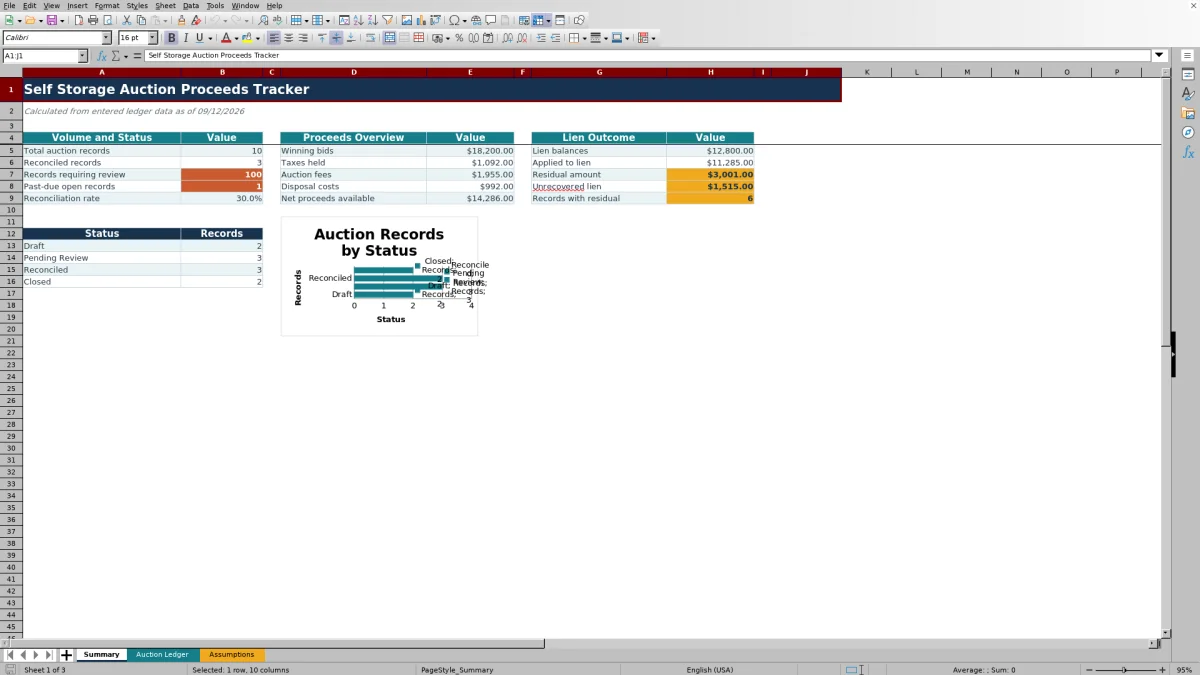
Facility owners, managers, regional operators, and acquisition teams can use the Summary sheet to monitor record volume, status counts, reconciliation rate, past-due open records, and financial totals. Fictional sample entries demonstrate the workflow, while the Assumptions sheet controls dates, amount limits, review settings, statuses, owners, and facility lists.
How this template can help
- Keep auction proceeds, deductions, lien balances, ownership, status, and due dates together by unit.
- Reduce manual arithmetic with formulas for net proceeds, lien application, residual amounts, and unrecovered liens.
- Identify incomplete records, reporting-period issues, amount-limit exceptions, and other configured review conditions.
- Monitor auction volume, reconciliation progress, financial totals, and status counts from a single summary.
What the workbook contains
How to get started
1. Configure the assumptions
Open the Assumptions sheet and update the as-of date, review window, residual threshold, allowed date range, and maximum amount as needed. Replace the listed facility, record-owner, or status values within their existing validation ranges.
2. Enter each auction record
Use one row per unit on the Auction Ledger sheet. Complete the facility, unit, auction date, reporting period start, five amount fields, record owner, status, and review due date. Add notes when useful.
3. Check the calculated results
After Excel recalculates, inspect Net Proceeds Available, Applied to Lien, Residual Amount, Unrecovered Lien, and Review Flag. Correct source entries or assumptions when a flag identifies an issue; do not replace the formulas in the calculated columns.
4. Monitor and close the workflow
Use the Summary sheet to track record counts, reconciliation rate, past-due open items, proceeds totals, lien outcomes, and the status chart. Update each ledger status as the record moves from Draft or Pending Review to Reconciled or Closed.
What the Auction Proceeds Tracker Records
The workbook provides 18 ledger fields for each auctioned unit, including facility, unit number, auction date, reporting period, winning bid, taxes held, auction fees, lien balance, disposal costs, owner, status, due date, and notes. Its 100 record rows provide a bounded register for recurring auction reconciliation.
Calculated fields remain beside the source amounts, so managers can trace how entered deductions and lien balances affect each unit's result.
How the Reconciliation Math Works
The ledger uses five calculated columns. Net proceeds available equal the winning bid less taxes held, auction fees, and disposal costs, with the result not falling below zero. Applied to Lien is the lesser of net proceeds and the lien balance.
Residual Amount is any net proceeds above the lien balance. Unrecovered Lien is any lien balance above net proceeds. The Review Flag checks record conditions against required entries and configured assumptions.
Worked Scenario: From Winning Bid to Residual
Input: In the fictional C-031 sample, the winning bid is $1,750, taxes held are $105, auction fees are $175, disposal costs are $75, and the lien balance is $950.
Result: The workbook calculates $1,395 in net proceeds, applies $950 to the recorded lien, produces a $445 residual, and shows no unrecovered lien.
Interpretation: The entered deductions leave enough net proceeds to cover the full recorded lien balance, with $445 remaining. That residual is below the default $500 review threshold.
Next decision: Confirm that the record inputs support the displayed result and retain or update its workflow status and notes. The fictional sample is marked Closed.
Using Statuses, Due Dates, and Review Flags
Each record can use Draft, Pending Review, Reconciled, or Closed status. The Summary sheet counts these statuses and calculates the reconciliation rate from reconciled records divided by total populated auction records.
The as-of date supports the count of past-due open records. A populated record is included when its review due date is before the as-of date and its status is neither Reconciled nor Closed. Review flags can also identify incomplete fields, amount-limit issues, reporting-period mismatches, timing conditions, and residual-threshold conditions.
Common Errors and Solutions
If the flag reports incomplete fields, complete the required facility, unit, dates, amount fields, owner, status, and review due date.
If an amount-limit message appears, correct the entry or adjust the maximum amount assumption when the operating policy calls for a different limit. Ledger amounts must remain between zero and the configured maximum.
If the reporting period is flagged, use the first day of the same month and year as the auction date.
If a date is rejected, check the minimum and maximum allowed dates on the Assumptions sheet.
If a dropdown lacks the needed facility or owner, replace an entry within the fixed source range or revise the validation setup before extending the list.
Comparison with a blank spreadsheet
Use the prepared workbook when its verified fields and calculations fit the facility task. Start with a blank spreadsheet when you need a different model and can build and test every field and formula.
| Method | Setup | Calculations and review | Practical fit |
|---|---|---|---|
| This Excel workbook | Use the prepared structure in the validated file | Review the documented calculations and results | Local editable workflow supported by the workbook |
| Blank spreadsheet | Create the structure from scratch | Build and test every formula and control | A different model designed for the facility |
Workbook Limits and Practical Boundaries
The ledger uses fixed ranges: its formulas and validations run through row 104, providing 100 data rows. The manifest shows no Excel table or defined names, and the facility and owner dropdowns point to fixed assumption ranges. Extending capacity or list length therefore requires corresponding workbook changes.
The available fields do not include dedicated columns for buyer payment method, check number, residual recipient, or disbursement date. The Summary also depends on Excel recalculation after entries or assumptions change.
Frequently asked questions
How many auction records can the Excel workbook hold?
The provided Auction Ledger contains 100 data rows, running from row 5 through row 104. Formulas and validation are already present across that range.
Which auction amounts does the workbook calculate?
It calculates net proceeds available, the amount applied to the lien, the residual amount, and the unrecovered lien. It also calculates a review flag from entered data and configured assumptions.
Can I change the facilities, record owners, and statuses?
Yes. The Assumptions sheet contains the source values used by the ledger dropdowns. The existing validation refers to fixed ranges, so adding entries beyond those ranges requires updating the validation setup.
What can cause a Review Flag message?
A message can result from incomplete required fields, amounts outside the configured limits, a reporting period that does not match the auction month, review timing conditions, or a residual that reaches the configured threshold.
Are the included facilities and transactions real?
No. The sample facilities, employees, unit details, and transactions are explicitly identified as fictional and are included to demonstrate the ledger workflow.
About the editors

Casey MonroeFacility operations editor

Elliot ParkFinance and performance editor