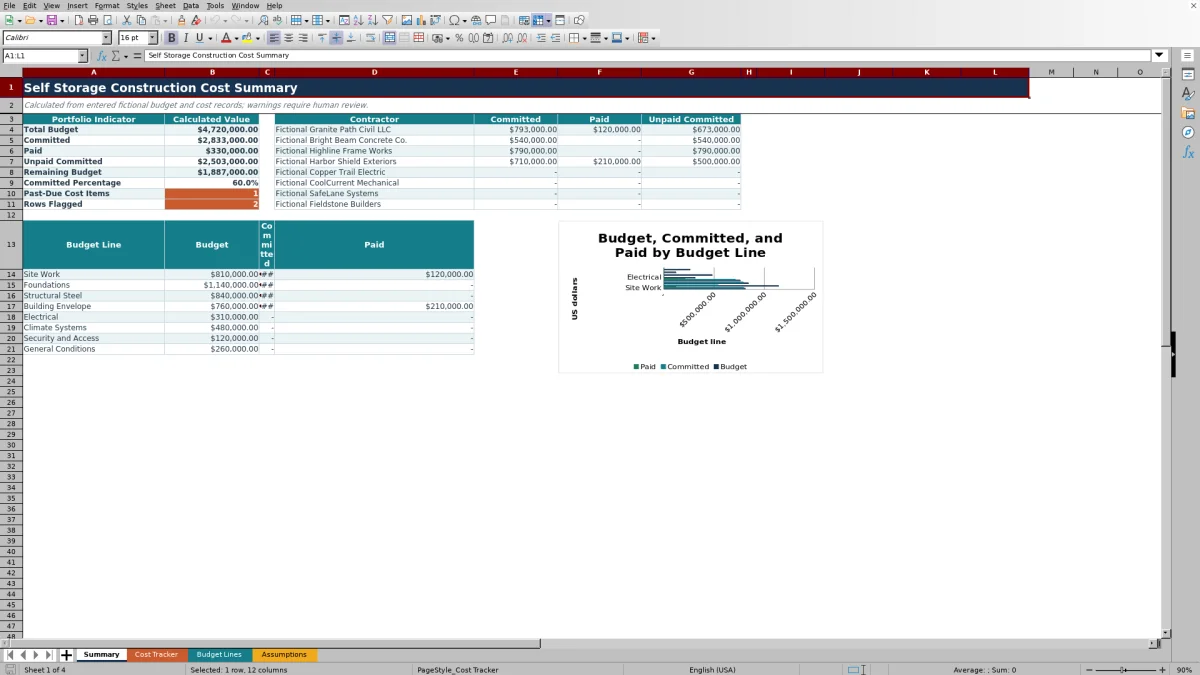
This self storage construction cost tracker is an Excel workbook for recording project budgets, contractor commitments, change orders, payment draws, due dates, owners, and statuses. It helps facility owners, managers, regional operators, and acquisition teams maintain a consistent construction cost record.
The spreadsheet calculates committed, paid, unpaid committed, and remaining budget amounts. It also summarizes activity by contractor and budget line while flagging incomplete, duplicate, past-due, near-budget, and over-budget records that need attention.
How this template can help
- Monitor budget, committed cost, paid cost, and remaining budget in one workbook.
- Organize original commitments, change orders, and payments by facility, contractor, and budget line.
- Identify past-due, incomplete, duplicate, near-budget, and over-budget records.
- Use calculated summaries to support recurring construction cost meetings and project updates.
What the workbook contains
How to get started
Step 1: Configure the assumptions
Replace the fictional facility, budget line, contractor, owner, cost type, and status options on the Assumptions sheet. Review the 90% budget threshold, allowed date range, and maximum single-entry amount.
Step 2: Enter the project budget
Use the Budget Lines sheet to enter one unique row for each facility and budget line combination. Add the budget ID, budget amount, owner, and notes in the editable fields.
Step 3: Record construction costs
Enter each original commitment, change order, or payment on a separate Cost Tracker row. Select consistent facility, budget line, contractor, cost type, and status values so the formulas aggregate each record correctly.
Step 4: Check results and exceptions
Review the calculated flags on the working sheets, then use Summary to monitor portfolio totals, contractor balances, budget line results, past-due items, and flagged rows.
How Committed-Versus-Paid Tracking Works
Each Cost Tracker record has a cost type, amount, and status. Committed cost includes Original Commitment and Change Order entries when the status is Approved or Paid. Paid cost includes only Payment entries with a Paid status.
Unpaid committed cost is committed cost minus paid cost, with a minimum of zero. Remaining budget is budget amount minus committed cost. These rules let the workbook report approved obligations separately from completed payments.
Worked Self Storage Construction Scenario
Input: A fictional Site Work budget line has a $420,000 budget. The Cost Tracker contains a $360,000 approved original commitment, a $28,000 approved change order, and a $120,000 paid Payment entry.
Result: The workbook calculates $388,000 committed, $120,000 paid, $268,000 unpaid committed, $32,000 remaining budget, and a committed percentage of about 92.4%.
Interpretation: The budget line is not over budget, but its committed percentage exceeds the supplied 90% review threshold. Only $32,000 remains available before additional commitments would exceed the current budget.
Next decision: The project team can verify the three source entries and evaluate any proposed Site Work costs before recording another approved commitment or revising the budget.
Common Errors and Solutions
The Review Flag and Review Status columns identify records that may affect the summaries.
- For a missing or duplicate ID, assign a unique cost or budget identifier.
- For a missing required field, complete the facility, budget line, contractor, cost type, amount, owner, status, or date field identified by the row setup.
- For a zero amount, confirm the intended value and replace the zero when appropriate.
- For a past-due cost item, verify the due date and update the status if the item has been paid or voided.
- For duplicate budget lines, retain only one budget row for each facility and budget line combination.
- For near-budget or over-budget results, confirm the underlying entries before changing the budget or adding another commitment.
Comparison with a blank spreadsheet
Use the prepared workbook when its verified fields and calculations fit the facility task. Start with a blank spreadsheet when you need a different model and can build and test every field and formula.
| Method | Setup | Calculations and review | Practical fit |
|---|---|---|---|
| This Excel workbook | Use the prepared structure in the validated file | Review the documented calculations and results | Local editable workflow supported by the workbook |
| Blank spreadsheet | Create the structure from scratch | Build and test every formula and control | A different model designed for the facility |
Contractor and Budget Line Visibility
The Summary sheet aggregates committed and paid amounts for the contractor options listed in Assumptions, then calculates unpaid committed amounts. It also reports budget, committed, and paid totals for the configured budget line options.
This structure lets an operator review contractor exposure and budget utilization without rebuilding a separate summary for each update. The included chart compares budget, committed, and paid amounts by budget line.
Editable Controls and Data Validation
The Assumptions sheet supplies dropdown options for facilities, budget lines, contractors, cost types, statuses, and owners. It also contains a 90% budget review threshold, an allowable date range from January 1, 2021 through December 31, 2036, and a $100,000,000 maximum single amount.
Cost Tracker validation applies to facility, budget line, contractor, cost type, owner, status, period, amount, and due date fields. Budget Lines validation applies to facility, budget line, owner, and budget amount fields.
Workbook Limits to Consider
The formulas, validations, filters, and summary references are configured for 100 cost entries and 100 budget rows, covering rows 6 through 105. Using additional rows requires extending the relevant formulas, validations, and references.
The workbook does not include dedicated fields for retainage, contingency transfers, forecasts, invoice approval stages, tax treatment, or bank reconciliation. It also does not match an individual payment to a specific commitment; payments are aggregated through shared facility, budget line, and contractor selections.
Frequently asked questions
What counts as committed construction cost in the Excel tracker?
An Original Commitment or Change Order counts as committed when its status is Approved or Paid. Other cost types and statuses do not contribute to the calculated committed amount.
What counts as paid construction cost?
Only a record with the Payment cost type and Paid status contributes to the calculated paid amount.
How should change orders be entered?
Enter each change order as a separate Cost Tracker record. Select Change Order as the cost type, enter its reference and amount, and assign Approved or Paid status when it should count as committed.
How does the workbook flag a past-due item?
A populated cost row is flagged as past due when its due date is earlier than the current date and its status is neither Paid nor Void.
Can the tracker hold more than 100 cost entries?
The supplied formulas and validation cover 100 Cost Tracker rows and 100 Budget Lines rows, from row 6 through row 105. Additional rows require the formulas, validation rules, and summary references to be extended.
About the editors

Casey MonroeFacility operations editor

Elliot ParkFinance and performance editor