This Excel workbook provides a structured self storage monthly close checklist for tracking rent roll reconciliation, deposits, receivables, payables, accruals, and the management report package by facility.
The spreadsheet includes 100 prepared checklist rows, fictional sample records, configurable assumptions, calculated review warnings, and a summary of completion and status counts. Replace the sample information with operating data and confirm every warning before completing the close.
How this template can help
- Keep recurring monthly close tasks, owners, due dates, amounts, and notes in one organized checklist.
- See completed, open, overdue, and review-needed item counts without manually compiling a separate status report.
- Standardize facility, close-item, owner, and status entries with configurable dropdown lists.
- Give facility managers and regional operators a consistent view of outstanding close work and documented exceptions.
What the workbook contains
How to get started
1. Configure the assumptions
Replace the fictional facilities and owners, review the available close items and statuses, and set the permitted dates, amounts, and number of days in the close window.
2. Enter the monthly close tasks
Use one Checklist row for each facility task. Enter the facility, close item, period, owner, status, due date, and any applicable reference, amount, or notes.
3. Resolve calculated review messages
Check the Review column for missing required fields, overdue work, or due dates outside the configured close window. Correct the entry or document the appropriate next action.
4. Monitor and finish the close
Use the Summary sheet and Checklist filters to monitor open work. Confirm supporting records outside the workbook before changing an item to Complete or Not Applicable.
What the Monthly Close Checklist Tracks
The workbook creates a consistent close record for rent roll reconciliation, deposit reconciliation, receivables review, payables review, accrual review, and the management report package. Each Checklist row can identify the facility, accounting period, responsible owner, current status, due date, amount, reference, and notes.
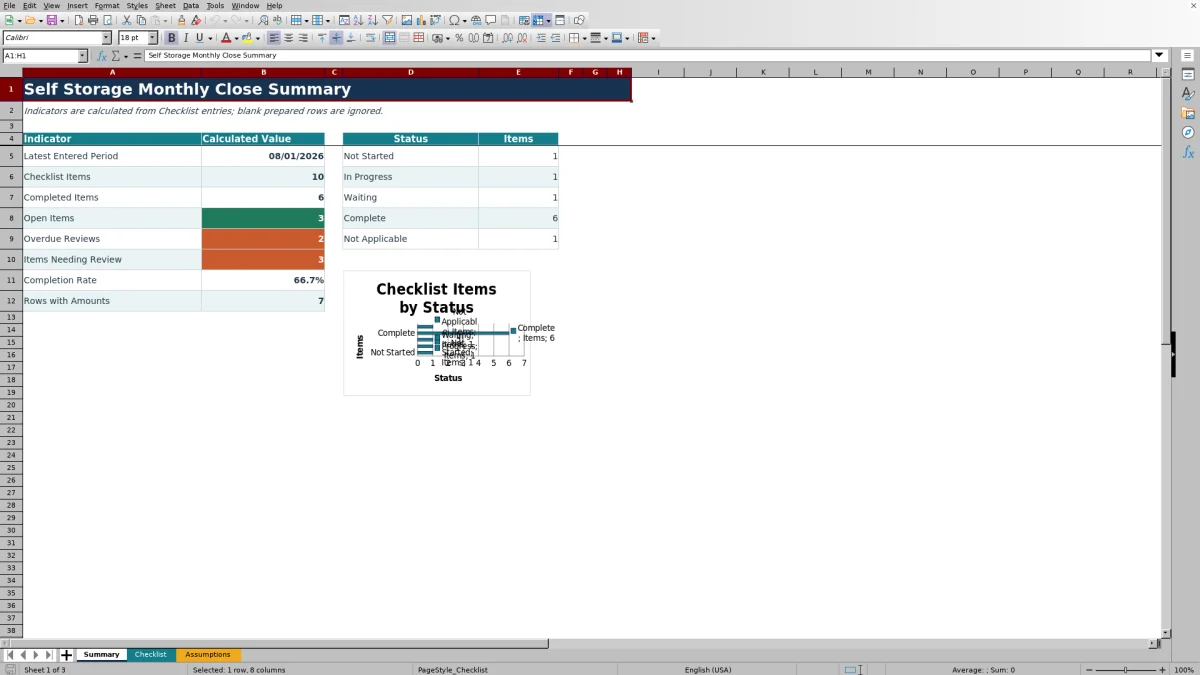
Prepared statuses include Not Started, In Progress, Waiting, Complete, and Not Applicable. The Summary sheet counts these statuses and reports open items, overdue reviews, completion rate, and other close indicators.
Worked Self Storage Close Scenario
Input: A fictional manager enters Example Juniper Key Storage, Receivables Review, an August 1, 2026 period, a $6,125.75 amount, an assigned owner, In Progress status, and a September 5, 2026 due date.
Result: The Summary includes the row in its checklist, In Progress, and open-item counts. If the workbook recalculates on September 6, 2026 while the status remains In Progress, the Review cell identifies the item as overdue.
Interpretation: The due date is within a 15-day close window after August month-end, but the task was not finished by its assigned deadline.
Next decision: The manager can follow up with the owner, update the status when work is supported, or document why the item is waiting rather than treating the warning as automatic approval.
Common Errors and Solutions
Review messages identify entries that need attention. A required-field message can be resolved by supplying the facility, close item, period, owner, status, and due date. An overdue message calls for checking the assigned owner, current status, and deadline.
If a due date is outside the close window, compare it with the period month-end and the configured deadline in Assumptions. If Excel rejects a date or amount, verify that it falls between the allowed minimum and maximum values. Use Not Applicable only when the close task genuinely does not apply.
Workbook Limits
The workbook has clear limits: it tracks close activity but does not replace the rent roll, bank records, accounts receivable detail, vendor ledger, journal support, or management approval. Its Summary counts rows containing amounts rather than presenting a total-dollar reconciliation.
The Review column provides calculated prompts that require confirmation. The workbook does not generate collection notices, and teams must retain supporting records outside the checklist. It provides 100 prepared rows, so users needing additional capacity would need to extend the workbook carefully while preserving formulas and validation.
Comparison with a blank spreadsheet
Use the prepared workbook when its verified fields and calculations fit the facility task. Start with a blank spreadsheet when you need a different model and can build and test every field and formula.
| Method | Setup | Calculations and review | Practical fit |
|---|---|---|---|
| This Excel workbook | Use the prepared structure in the validated file | Review the documented calculations and results | Local editable workflow supported by the workbook |
| Blank spreadsheet | Create the structure from scratch | Build and test every formula and control | A different model designed for the facility |
Configurable Close Controls
The Assumptions sheet stores the prepared facility, owner, status, and close-item options used by Checklist validation. Operators can replace the fictional entries within those lists, indicate whether each close-item type requires an amount, and adjust the close deadline from zero to 60 days after period end.
The same sheet contains the earliest and latest allowed dates and the minimum and maximum permitted amounts. Reviewing these settings before data entry helps align the checklist with the operator's normal monthly close schedule.
Using the Checklist for Monthly Handoffs
Facility and regional teams can filter the Checklist by owner, facility, status, period, or due date to focus a handoff discussion. Notes can capture the operating context for a pending task, while the calculated Review column keeps exceptions visible beside the underlying entry.
At the end of the cycle, the Summary provides a concise progress view. Before marking work Complete, the assigned team should confirm the related reconciliation, report, or other supporting record outside the workbook.
Frequently asked questions
What close activities are included in the workbook?
The prepared close-item list includes rent roll reconciliation, deposit reconciliation, receivables review, payables review, accrual review, and the management report package.
Can I replace the sample facilities and owners?
Yes. The Assumptions sheet contains fictional facility and owner options that can be replaced within the prepared list ranges used by the Checklist dropdowns.
How does the Review column work?
Each prepared Checklist row contains a formula that checks for missing required fields, overdue open work, and due dates outside the configured close window. The resulting message is a prompt for confirmation, not an approval.
How many checklist entries can the workbook hold?
The Checklist contains 100 prepared entry rows, from row 5 through row 104, with formulas and validation already applied.
Does this checklist replace accounting records or reconciliations?
No. It organizes monthly close tasks and status information, but the facility must still maintain and review the underlying rent roll, deposit records, receivables, payables, accrual support, and management reports.
About the editors

Casey MonroeFacility operations editor

Elliot ParkFinance and performance editor