The Self Storage Accounts Payable Tracker is an Excel workbook for organizing vendor bills across self-storage facilities. The spreadsheet records invoice details, facility and unit or area allocations, approval ownership, due dates, payment status, paid dates, and notes.
The XLSX includes a bill register, a calculated summary dashboard, configurable assumptions, dropdown lists, entry validation, and formula-based review flags. Its sample facilities, vendors, owners, and bills are fictional, and the workbook does not approve bills, issue payments, or send notices.
How this template can help
- Keep vendor invoices and payment details in one organized register covering up to 200 bills.
- Monitor open payables, past-due amounts, upcoming due dates, pending approvals, and payments recorded during the current month.
- Allocate each bill to a facility and unit or area so managers and regional operators can examine costs by location.
- Surface missing information and potential duplicate entries with formula-based review flags.
What the workbook contains
How to get started
1. Configure the available options
Open the Assumptions sheet and replace the fictional facility names, approval owners, and status choices in the yellow cells. Confirm the upcoming-due window, large-bill threshold, maximum amount, and allowed date range.
2. Enter vendor bills
Use the yellow cells on the Bills sheet to record a unique bill ID, facility, vendor, period end, invoice reference, amount, approval owner, approval status, payment status, due date, and any useful allocation or notes.
3. Update approvals and payments
Change approval and payment statuses as each bill progresses. When a bill is paid, select Paid and enter the paid date; use Void only for bills that should be excluded from open-payable calculations.
4. Monitor timing and exceptions
Check Days to Due and Review Flag on the Bills sheet, then use the Summary sheet to examine open, overdue, upcoming, paid, and facility-level amounts before deciding which records need follow-up.
A central bill register for self-storage operations
The workbook provides a single bill register for facility owners, managers, regional operators, and acquisition teams that need a consistent view of vendor obligations. Each row connects the vendor and invoice reference to a facility, unit or area, amount, approval owner, status, due date, and payment record.
The Bills table accommodates 200 entries. Yellow cells identify the intended input areas, while Days to Due and Review Flag are calculated columns.
Facility allocation and dashboard reporting
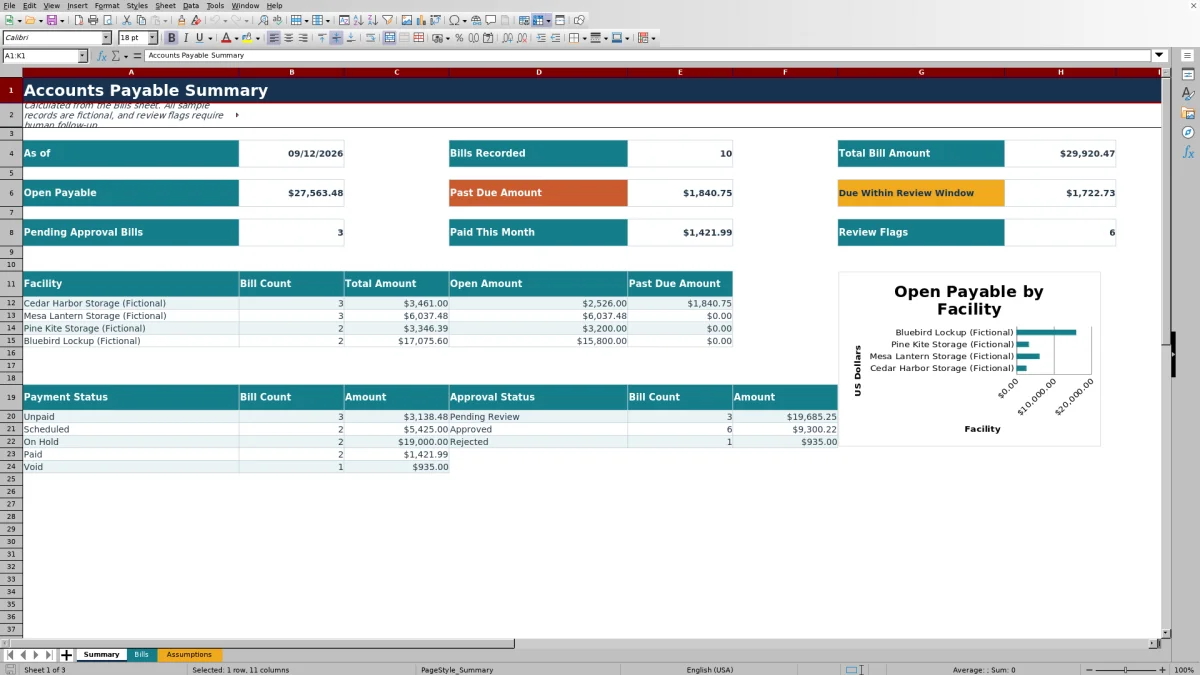
The Summary sheet calculates open payable, total bill amount, past-due amount, bills due within the configured review window, pending approvals, payments recorded during the current month, and the number of flagged records.
A facility allocation summary shows bill count, total amount, open amount, and past-due amount for configured locations. The included chart plots open amounts for those facilities, while separate summaries group bills and amounts by payment and approval status.
Worked scenario for an equipment service bill
Input: A manager records the fictional Pine Kite Storage equipment service bill for $3,200, assigns Morgan Demo as the approval owner, selects Pending Review and On Hold, and enters September 24, 2026, as the due date.
Result: The workbook counts the bill among pending approvals, includes $3,200 in open payables, and calculates the number of days to the due date from TODAY(). If the due date passes while the bill remains open, the amount moves into the past-due calculation.
Interpretation: The combination of Pending Review, On Hold, and the calculated due timing shows that approval status is blocking payment progress.
Next decision: The manager can check the invoice and service details, contact the assigned approval owner, and then update the approval or payment status based on the outcome.
Common errors and solutions
The Review Flag column identifies records that may need correction or follow-up.
- If a required-field message appears, complete the facility, vendor, period end, invoice reference, amount, approval owner, approval status, payment status, and due date.
- If a duplicate bill ID is flagged, confirm whether two rows represent the same obligation and assign a unique ID where appropriate.
- If a possible duplicate invoice is flagged, compare the vendor and invoice reference against the other entry before retaining both bills.
- If a Paid bill lacks a paid date, enter the actual paid date or correct the payment status.
Clearing a flag confirms that the spreadsheet entry meets its formula checks; it does not authorize payment.
Workbook limits and operating boundaries
The Bills table and dashboard formulas cover 200 bill rows, from row 4 through row 203. The configured dropdown sources provide four facility options, four approval owners, three approval statuses, and five payment statuses. Expanding those ranges requires corresponding workbook updates.
Amount validation accepts entries from $0.01 through the configured $1,000,000 maximum. Date validation uses January 1, 2000, through December 31, 2031. The default upcoming-due window is seven days, and the default large-bill review amount is $5,000.
The workbook tracks information and calculates prompts, but it does not route approvals, issue payments, or send vendor notices. Date-sensitive results change when Excel recalculates TODAY().
Comparison with a blank spreadsheet
Use the prepared workbook when its verified fields and calculations fit the facility task. Start with a blank spreadsheet when you need a different model and can build and test every field and formula.
| Method | Setup | Calculations and review | Practical fit |
|---|---|---|---|
| This Excel workbook | Use the prepared structure in the validated file | Review the documented calculations and results | Local editable workflow supported by the workbook |
| Blank spreadsheet | Create the structure from scratch | Build and test every formula and control | A different model designed for the facility |
Using the tracker across a facility portfolio
Facility managers can maintain bill-level details, while regional operators can use the Summary sheet to compare recorded open and overdue amounts by configured location. Acquisition teams can also use the register as a working schedule when organizing vendor obligations supplied for a facility, provided entries are checked against the relevant source documents.
A consistent routine is to enter bills when received, update approval and payment fields as their status changes, resolve flags, and examine the dashboard before scheduled payment decisions. This keeps the workbook current without treating it as a payment system or automatic approval record.
Frequently asked questions
How many vendor bills can the workbook track?
The Bills table provides 200 entry rows, covering rows 4 through 203. Dashboard formulas and review checks use that same configured range.
Can I replace the fictional facilities and approval owners?
Yes. Replace the listed values in the yellow cells on the Assumptions sheet. The configured dropdown sources currently support four facility options and four approval-owner options.
How is Days to Due calculated?
For an open bill with a due date, Days to Due subtracts TODAY() from the due date. The result is left blank when the bill ID or due date is blank or when the payment status is Paid or Void.
What can cause a review flag?
Formula checks can flag missing required fields, duplicate bill IDs, possible duplicate invoices based on vendor and invoice reference, and payment records that need supporting date information. A flag is a prompt to inspect the entry, not an approval or payment instruction.
Does the Excel workbook pay bills or send reminders?
No. The workbook records approval and payment information, calculates due-date timing, and displays review prompts. It does not issue payments, route approvals, or send notices.
About the editors

Casey MonroeFacility operations editor

Elliot ParkFinance and performance editor