The Self Storage Income and Expense Tracker is an Excel workbook for facility owners, managers, regional operators, and acquisition teams that need one structured place to record facility transactions. The ledger classifies each record by period, facility, unit or area, entry type, account, amount, owner, status, due date, and notes.
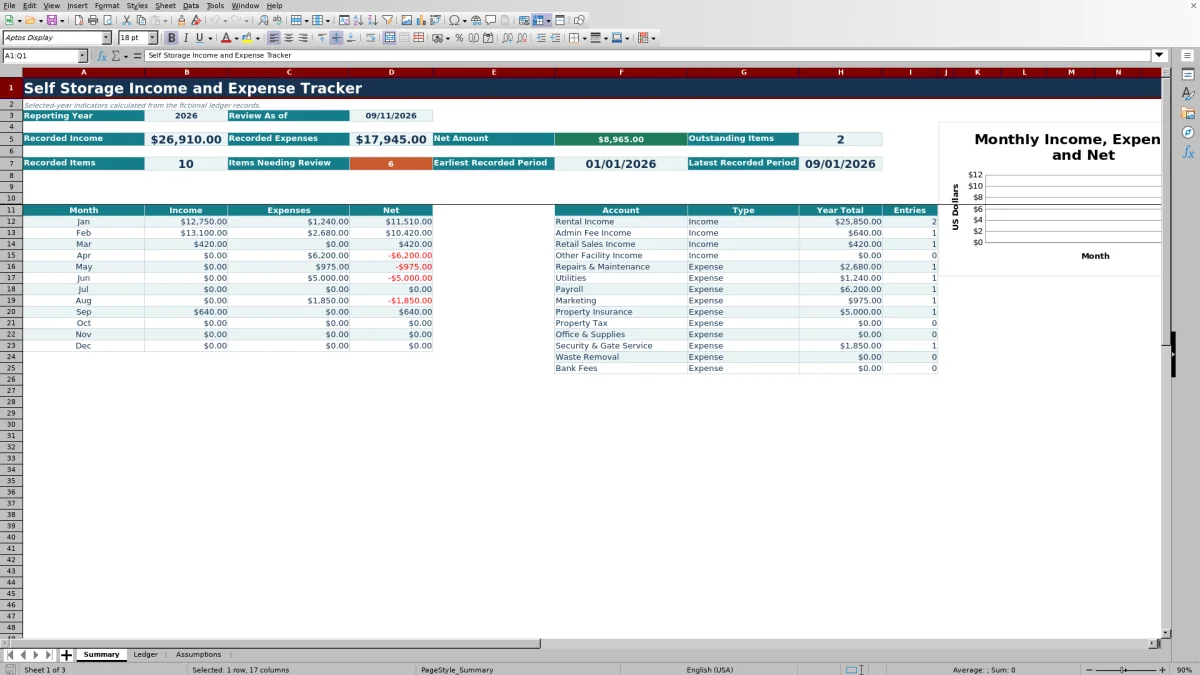
Enter source amounts as positive values, and the spreadsheet assigns the net sign based on Income or Expense. The Summary sheet then reports selected-year income, expenses, net amount, monthly totals, account totals, entry counts, outstanding items, and records that need follow-up, while the Assumptions sheet controls dates, thresholds, and editable lists.
How this template can help
- Keeps facility income and expense records in a consistent 120-row ledger.
- Shows selected-year income, expenses, net amount, monthly activity, and account totals.
- Flags incomplete entries, account-type conflicts, large amounts, and due-date concerns for follow-up.
- Lets operators configure facilities, record owners, statuses, accounts, dates, and amount limits.
What the workbook contains
How to get started
1. Configure the workbook
Open the Assumptions sheet and confirm the review date, reporting year, due-soon period, large-amount threshold, allowed dates, and amount limits. Update the editable facility, owner, status, account, and entry-type lists as needed.
2. Enter ledger records
Go to the Ledger sheet and enter each transaction in rows 5 through 124. Use a positive amount, then select Income or Expense so the Net Amount formula can apply the correct sign.
3. Address review messages
Check the Review column for missing required fields, account and entry-type conflicts, large amounts, or due-date concerns. Correct the source entry or document why no change is needed.
4. Read the summary
Use the Summary sheet to review selected-year indicators, the 12-month income and expense table, account totals, entry counts, outstanding items, and the monthly chart.
Record self-storage income and expenses consistently
The ledger provides fields for period, facility, unit or area, entry type, account, amount, record owner, status, due date, and notes. Users enter positive amounts, and the Net Amount column returns income as positive and expenses as negative.
- Facility, entry type, account, owner, and status fields use configurable lists.
- Period and due-date entries must stay within the allowed date range.
- Amount entries must stay within the configured positive minimum and maximum.
- The filter across columns A through L helps operators isolate relevant records.
Review monthly and account-level results
The Summary sheet uses the selected reporting year from the Assumptions sheet. It calculates recorded income, recorded expenses, net amount, transaction count, outstanding items, records needing review, and the earliest and latest recorded periods.
A 12-row monthly section reports income, expenses, and net amount. A separate account section lists 14 accounts, their default type, annual total, and entry count. Records marked Void are excluded from income, expense, net, and account totals.
Worked fictional self-storage scenario
Input: A fictional operator records $12,750 of January rental income and $1,240 of January utilities, both dated in 2026 and marked Paid. Result: For those two records, the January summary shows $12,750 of income, $1,240 of expenses, and a net amount of $11,510. Interpretation: The result describes only the records entered and included in the selected reporting year; it is not a complete facility result unless all applicable transactions have been recorded. Next decision: The manager can verify that January records are complete, review the account assignments, and then investigate any remaining review messages before relying on the monthly total.
Common errors and practical solutions
The workbook uses review prompts to identify entries that may need attention. These messages request follow-up rather than taking an automated action.
- If Complete required fields appears, fill in the missing facility, entry type, account, amount, owner, status, or due date.
- If Check type/account appears, confirm that the selected account's default type matches Income or Expense.
- If Review large amount appears, compare the entry with the threshold on the Assumptions sheet and verify the source record.
- If a due-date message appears, check the status, due date, Review As of Date, and Due Soon Days setting.
- If an amount or date is rejected, confirm that it falls within the configured validation limits and that the amount is positive.
Comparison with a blank spreadsheet
Use the prepared workbook when its verified fields and calculations fit the facility task. Start with a blank spreadsheet when you need a different model and can build and test every field and formula.
| Method | Setup | Calculations and review | Practical fit |
|---|---|---|---|
| This Excel workbook | Use the prepared structure in the validated file | Review the documented calculations and results | Local editable workflow supported by the workbook |
| Blank spreadsheet | Create the structure from scratch | Build and test every formula and control | A different model designed for the facility |
Workbook limits to consider
The current ledger provides 120 entry rows, and the summary formulas evaluate ledger rows 5 through 124. The monthly table includes all 12 months, while the validated chart series references nine monthly positions. Review messages do not approve, pay, post, or void transactions; they only request follow-up. Summary accuracy depends on complete manual entries, correct account mappings, appropriate statuses, and current assumptions.
Using the tracker across multiple facilities
The editable facility list contains three fictional locations and can be changed to match the operator's records. Regional teams can use the Ledger filter to isolate one facility, owner, account, status, or period. The Summary sheet reports combined results from all qualifying ledger entries rather than providing a separate facility selector, so users should interpret its totals as workbook-wide for the selected year.
Frequently asked questions
What does the self-storage income and expense tracker record?
It records the period, facility, unit or area, income or expense type, account, positive amount, record owner, status, due date, and notes. It also calculates a signed net amount and displays a review message when applicable.
How does the Excel workbook calculate net amounts?
Users enter positive source amounts. The Net Amount formula keeps Income positive and changes Expense to a negative value. If the entry type is missing or invalid, the formula does not assign a signed amount.
Are Void records included in the summary?
No. Records with a Void status are excluded from the selected-year income, expense, net, and account totals shown on the Summary sheet.
Can I change the facility and account lists?
Yes. The Assumptions sheet contains editable lists for facilities, record owners, statuses, accounts, default account types, and entry types. The ledger's selection controls use those lists.
What should I do when a review message appears?
Check the entry against the source record and the settings on the Assumptions sheet. A message may indicate missing required fields, an account-type mismatch, an amount at or above the review threshold, or a due-date concern. The message is a prompt for follow-up, not an automated action.
About the editors

Casey MonroeFacility operations editor

Elliot ParkFinance and performance editor