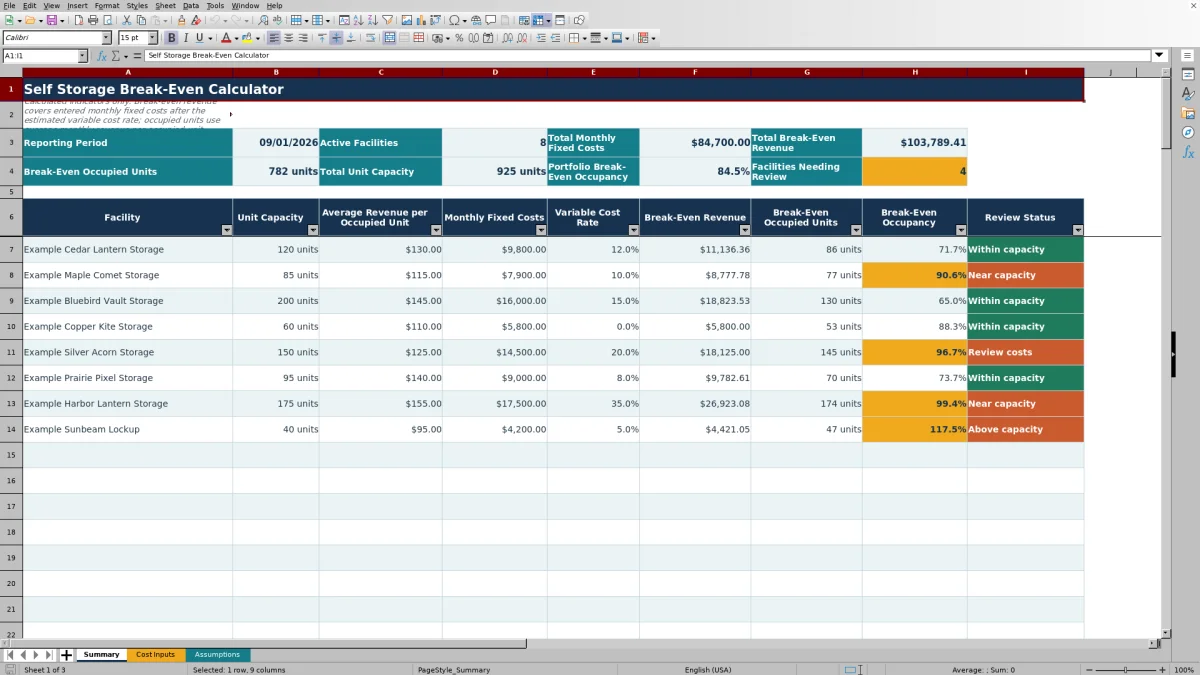
This self storage break-even calculator is an Excel workbook for estimating the monthly revenue, occupied units, and occupancy rate needed to cover entered fixed and variable costs.
Enter facility assumptions and period-specific fixed costs, then use the Summary sheet to see portfolio totals, facility-level results, and statuses that identify missing inputs or capacity pressure.
How this template can help
- Estimates the monthly revenue each facility needs to cover its entered costs.
- Converts break-even revenue into required occupied units and an occupancy percentage.
- Combines active facilities into portfolio-level break-even totals.
- Flags missing inputs, unconfirmed costs, and break-even requirements near or above capacity.
What the workbook contains
How to get started
1. Set the reporting period and limits
Open Assumptions and select the reporting period. Review the near-capacity warning level, variable cost-rate range, capacity limits, date range, and maximum input amounts.
2. Enter facility assumptions
Add each facility’s unit capacity, average monthly revenue per occupied unit, variable cost rate, owner, status, and notes. Mark facilities Active when they should appear in the Summary calculations.
3. Add monthly fixed costs
On Cost Inputs, enter each facility, matching period, amount, owner, status, due date, and notes. Included and Review amounts feed the calculation, while Excluded amounts do not.
4. Interpret the Summary
Review total and facility-level break-even results. Investigate statuses for missing periods or costs, Review entries, near-capacity requirements, and occupied-unit requirements above available capacity.
How the self storage break-even calculation works
For each active facility, the workbook totals fixed-cost entries marked Included or Review that match the selected reporting period. Break-even revenue equals monthly fixed costs divided by one minus the variable cost rate. Break-even occupied units equal that revenue divided by average monthly revenue per occupied unit and are rounded up to a whole unit. Break-even occupancy equals required occupied units divided by unit capacity.
Worked self storage scenario
Input: Consider the fictional Example Maple Comet Storage facility with 85 units, $115 in average monthly revenue per occupied unit, a 10% variable cost rate, and $7,900 in monthly fixed costs.
Result: Break-even revenue is $7,900 divided by 0.90, or $8,777.78. Dividing that amount by $115 produces 76.33 units, which rounds up to 77 occupied units. The break-even occupancy is therefore 77 divided by 85, or approximately 90.6%.
Interpretation: With the default 90% warning level, the facility is classified as Near capacity because its required occupancy exceeds the warning threshold without exceeding its 85-unit capacity.
Next decision: Recheck the fixed-cost total and average revenue estimate, then test reasonable input changes to determine whether the break-even requirement can move below the warning level.
Common errors and solutions
- Missing cost input: Confirm that the facility name and cost-entry period match the active facility and selected reporting period. Also confirm that at least one matching entry is marked Included or Review.
- Missing period: select a reporting date within the allowed date range on the Assumptions sheet.
- Review costs: verify the affected entries, then keep them as Review, change confirmed entries to Included, or mark amounts that should not be used as Excluded.
- Above capacity: Check unit capacity, fixed costs, average revenue per occupied unit, and the variable cost rate. The status means the rounded break-even unit requirement is greater than available capacity.
- Blank calculated fields: confirm that fixed costs and average revenue are positive and that the variable cost rate remains within the configured range.
Limits of the calculator
This is a planning model based on facility-level averages. It provides 100 facility assumption rows and 100 fixed-cost entry rows in total. It does not separate results by unit size, import operating data, forecast customer demand, or replace actual performance reporting. Results change when costs, capacity, average revenue, variable cost rates, statuses, or the reporting period change.
Comparison with a blank spreadsheet
Use the prepared workbook when its verified fields and calculations fit the facility task. Start with a blank spreadsheet when you need a different model and can build and test every field and formula.
| Method | Setup | Calculations and review | Practical fit |
|---|---|---|---|
| This Excel workbook | Use the prepared structure in the validated file | Review the documented calculations and results | Local editable workflow supported by the workbook |
| Blank spreadsheet | Create the structure from scratch | Build and test every formula and control | A different model designed for the facility |
Understanding facility review statuses
Within capacity means the break-even occupancy is below the configured warning level. Near capacity means the result reaches or exceeds that level without requiring more units than the facility has. Above capacity means required occupied units exceed unit capacity. Review costs identifies a matching cost entry marked Review, while Missing cost input and Missing period identify incomplete calculation inputs.
Using portfolio totals
The Summary sheet counts active facilities and adds their unit capacity, monthly fixed costs, break-even revenue, and rounded break-even occupied units. Portfolio break-even occupancy is total break-even occupied units divided by total unit capacity. The facilities-needing-review count includes all displayed statuses other than Within capacity, helping managers and regional operators identify which facility assumptions to inspect first.
Frequently asked questions
What costs should I enter in the self storage break-even calculator?
Enter recurring monthly fixed-cost estimates that should be covered by facility revenue. Multiple entries can be used for the same facility and period, and their statuses determine whether they feed the calculation.
How does the variable cost rate affect break-even revenue?
A higher variable cost rate increases the revenue needed to cover the same fixed costs because a smaller share of each revenue dollar remains after estimated variable costs. The workbook divides fixed costs by one minus the variable cost rate.
Why are break-even occupied units rounded up?
Occupied units are rounded up because a fraction of a unit cannot be occupied. This ensures the displayed unit requirement is sufficient to reach the calculated break-even revenue at the entered average monthly revenue per occupied unit.
Do cost entries marked Review count toward the result?
Yes. Entries marked Review are included with entries marked Included, but they also cause the facility’s Summary status to display Review costs. Entries marked Excluded do not feed the calculation.
Can the Excel workbook calculate results for multiple facilities?
Yes. The Assumptions sheet provides 100 facility rows, and active facilities flow to the Summary sheet. The Cost Inputs sheet provides 100 fixed-cost entry rows shared across the facilities.
About the editors

Casey MonroeFacility operations editor

Elliot ParkFinance and performance editor