This self storage operating budget Excel workbook organizes an annual plan by month, facility, and account, with fields for budget amounts, actuals, owners, statuses, due dates, and notes.
The XLSX calculates net revenue and expense amounts, variances, monthly NOI, account-level year-end projections, and review flags for the selected facility through the chosen actuals cutoff.
How this template can help
- Keeps monthly budgets and actuals organized by facility and account.
- Shows facility-level and account-level variances through a configurable cutoff date.
- Identifies incomplete entries, unmapped accounts, unusual periods, unbudgeted actuals, and material variances.
- Supports year-end planning by combining entered actuals with budget amounts for remaining lines.
What the workbook contains
How to get started
1. Configure the reporting assumptions
On the Assumptions sheet, set the report year, actuals-through date, variance threshold, selected facility, and maximum line amount. Confirm the facility, account, owner, and status options used for data entry.
2. Enter monthly budget and actual lines
On Budget Detail, enter one facility, account, and month per row. Use the first day of the month for each period, then add the budget amount, available actual amount, owner, status, due date, and notes.
3. Address flagged entries
Check the calculated Review Flag column for incomplete rows, periods outside the report year, unmapped accounts, unbudgeted actuals, material variances, or status-related issues.
4. Read the operating results
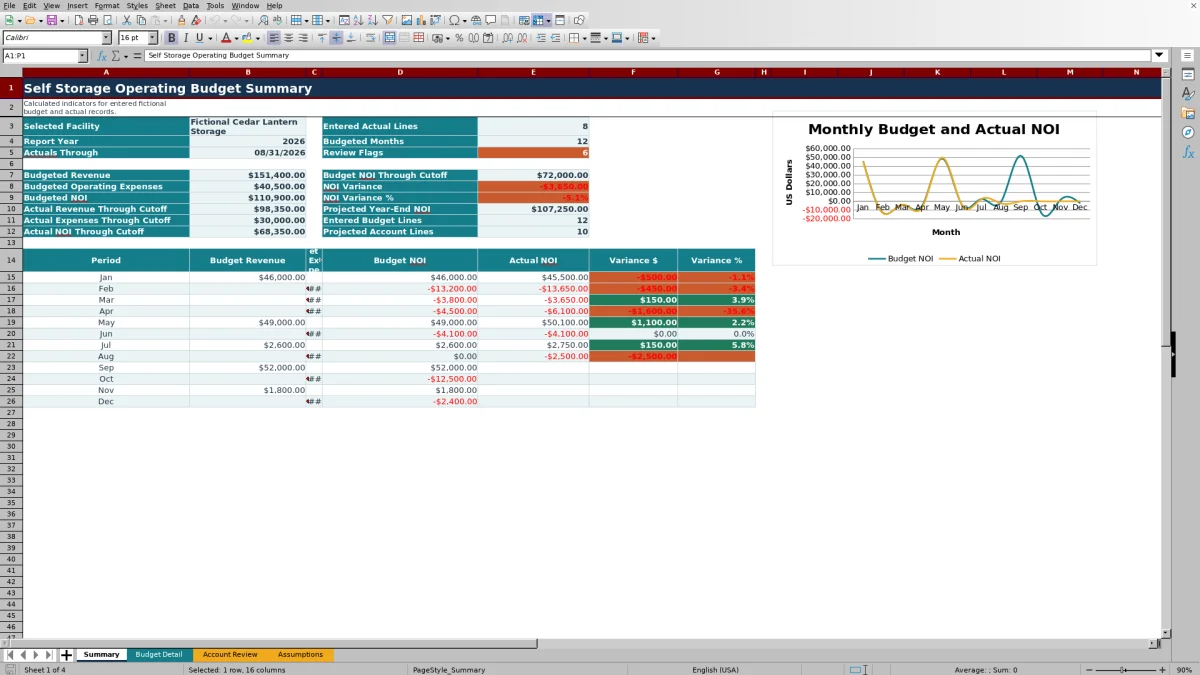
Use Account Review for annual and cutoff results by account. Use Summary for facility totals, monthly NOI, variance measures, the year-end NOI projection, and the budget-versus-actual NOI chart.
Monthly self storage budget structure
The Budget Detail sheet provides 120 available rows for monthly account lines. Each row can hold a facility, account, period, budget amount, actual amount, owner, status, due date, and note. Revenue and expense classifications come from the account list on the Assumptions sheet.
Calculated columns convert revenue to positive net amounts and expenses to negative net amounts for NOI reporting. They also calculate dollar variance, percentage variance, and a review flag without requiring separate formulas on each entered line.
Facility and account reporting
The Summary and Account Review sheets report on the selected facility from Assumptions. Summary presents annual budget totals, actual results through the cutoff, projected year-end NOI, entry counts, review-flag counts, and a 12-month budget-versus-actual NOI chart.
Account Review separates the results across 12 configured accounts. Facility managers and regional operators can use its annual budget, budget-through-cutoff, actual-through-cutoff, favorable variance, variance percentage, projection, and status columns to focus on specific revenue or expense lines.
Worked operating budget scenario
Consider a fictional Repairs and Maintenance account with a $1,000 budget in each of 12 months, a January 31 cutoff, and a $1,200 January actual. Input: enter 12 monthly budget lines and place the $1,200 actual on the January line. Result: the annual budget is $12,000, the budget through the cutoff is $1,000, the actual through the cutoff is $1,200, and the expense account has a $200 unfavorable variance, or negative 20%.
Interpretation: because the absolute variance exceeds the default 10% threshold, the account requests variance review. With January actual and the remaining 11 budgeted months, the projected account total is $12,200. Next decision: the manager can document the January cause and decide whether the remaining monthly budget lines should stay unchanged or be revised outside the calculated workbook fields.
Variance and projection logic
Budget Detail calculates variance as net actual minus net budget. Because expense amounts are converted to negative values, an expense overrun produces a negative variance. Account Review presents favorable variance directly: actual minus budget for revenue and budget minus actual for expenses.
Year-end projections use actual amounts where they have been entered and budget amounts for remaining lines. The result is tied to the selected facility, configured report year, and actuals-through date rather than a separate forecasting driver.
Common errors and solutions
- If Summary is blank, confirm that the selected facility exactly matches a facility used on Budget Detail and that applicable budget or actual lines exist.
- If a row says Review account, add or correct the account in the Assumptions account list and assign its Revenue or Expense class.
- If a row says Review period, use the first day of a month within the configured report year.
- If a row is incomplete, supply the facility, account, period, budget amount, owner, and status required by the row checks.
- If an unbudgeted actual is flagged, verify whether the zero budget is intentional before changing the input or documenting the exception.
- If totals omit new records, confirm that entries remain within rows 4 through 123, which are the fixed detail ranges used by the formulas.
Workbook limits
The template provides 120 detail rows, 12 configured accounts, three facility options, four owner options, and four status options. Its summary and account review display one selected facility for one report year at a time.
The formulas and validation rules use fixed ranges. Expanding the number of detail rows or extending option lists beyond their current ranges requires corresponding formula and validation updates. Projections depend on entered budget and actual lines and do not introduce separate operating assumptions beyond those records.
Comparison with a blank spreadsheet
Use the prepared workbook when its verified fields and calculations fit the facility task. Start with a blank spreadsheet when you need a different model and can build and test every field and formula.
| Method | Setup | Calculations and review | Practical fit |
|---|---|---|---|
| This Excel workbook | Use the prepared structure in the validated file | Review the documented calculations and results | Local editable workflow supported by the workbook |
| Blank spreadsheet | Create the structure from scratch | Build and test every formula and control | A different model designed for the facility |
Frequently asked questions
How does the workbook calculate the year-end projection?
The projection uses actual amounts where they have been entered and budget amounts for remaining lines. Summary reports projected year-end NOI, while Account Review reports the projected total for each configured account.
What does favorable variance mean for revenue and expenses?
For revenue accounts, favorable variance is actual minus budget. For expense accounts, it is budget minus actual, so spending below budget is favorable and spending above budget is unfavorable.
Can the workbook contain more than one facility?
Budget Detail can contain records for the three configured facility options. Summary and Account Review display results only for the facility selected on the Assumptions sheet.
What can trigger a review flag?
A row can request review for missing required entries, a period outside the configured year, an account without a valid class, an unbudgeted actual, a variance at or above the configured threshold, or a relevant status and due-date condition.
Can the variance threshold be changed?
Yes. The Assumptions sheet includes an editable variance review threshold from 0% to 100%. The supplied workbook uses 10%, and the detail and account review formulas reference that setting.
How many monthly records can be entered?
The Budget Detail sheet provides 120 entry rows, from row 4 through row 123. Adding records beyond that range requires updates to the formulas, validation ranges, filters, and reporting references.
About the editors

Casey MonroeFacility operations editor

Elliot ParkFinance and performance editor