This self storage rate change notice schedule is an Excel workbook for coordinating approved monthly rate changes across facilities and units. It keeps rate details, notice periods, approval dates, owners, delivery information, and notes in one XLSX file.
Enter the required planning inputs, and the spreadsheet calculates each increase, send due date, effective date, schedule status, and review warning. Summary indicators help facility managers, regional operators, and acquisition teams monitor the notice pipeline.
How this template can help
- Keeps approved rate changes, notice dates, ownership, delivery status, and notes in one schedule.
- Reduces manual date and rate calculations with formulas applied across 100 prepared records.
- Makes sent, scheduled, due-soon, overdue, on-hold, canceled, and review records easier to identify.
- Provides regional and acquisition teams with consistent fields for organizing facility-level notice activity.
What the workbook contains
How to get started
1. Configure the planning assumptions
Open the Assumptions sheet and confirm the lead time, due-soon horizon, notice-period boundaries, maximum monthly amount, and increase review threshold. Replace the fictional facility and owner options with the names used by your operation.
2. Enter each approved rate change
On the Notice Schedule sheet, select a facility and owner, then enter the unit, current monthly rate, approved monthly rate, notice period, approval date, notice status, and any notes.
3. Check the calculated dates and warnings
Verify the increase amount, increase percentage, send due date, effective date, schedule status, and review warning. Correct missing, invalid, or out-of-range entries before relying on the schedule.
4. Record delivery and monitor the summary
Enter the sent date after delivery and update the notice status when an item is placed on hold or canceled. Use the filters and Summary sheet to monitor upcoming, overdue, sent, and flagged records.
Organize Self Storage Rate Change Notices
The workbook creates one source of planning data for approved rate changes. Each row connects a facility and unit with the current rate, approved rate, notice period, approval date, assigned owner, delivery information, status, and notes.
This structure supports day-to-day facility use as well as regional tracking across multiple locations. Filters on the Notice Schedule make it possible to narrow the list by facility, owner, status, date, or warning.
Calculate Send and Effective Dates
The schedule uses calculated dates to turn an approval into an operational timeline. The send due date equals the approval date plus the planning lead time stored on the Assumptions sheet. The effective date equals the send due date plus the entered notice period.
The workbook also calculates the dollar increase and percentage increase. Schedule Status uses the notice status, sent date, send due date, current date, and due-soon horizon to classify populated records as Sent, Scheduled, Due Soon, Overdue, On Hold, Canceled, or Review.
Worked Self Storage Rate Change Scenario
Consider a fictional unit with a current monthly rate of $80, an approved monthly rate of $88, a 30-day notice period, and an approval date of August 31, 2026. With the default three-day planning lead time, the workbook calculates an $8 increase, a 10% increase, a send due date of September 3, 2026, and an effective date of October 3, 2026.
Worked result: If the record remains Planned with no sent date on September 1, the default seven-day horizon categorizes it as Due Soon because the send due date is two days away.
Interpretation: The notice has not been recorded as sent and is approaching its planning due date. Next decision: Complete the delivery step by September 3, then enter the actual sent date so the schedule can display Sent.
Common Errors and Solutions
Correct the source entry when the Review Warning identifies a problem. A blank unit, missing owner or status, invalid amount, unusable date, or incomplete required field can produce a missing-or-invalid-input warning.
- If the notice period is not a whole number or falls outside the configured boundaries, enter a valid period or update the assumptions.
- If Notice Status is Sent but Sent Date is blank, enter the actual sent date or correct the notice status.
- If a sent date falls after the calculated send due date, verify the dates and retain an explanatory note where appropriate.
- If an amount or percentage exceeds a configured review threshold, verify the entered rates and adjust only when the source information supports the change.
Comparison with a blank spreadsheet
Use the prepared workbook when its verified fields and calculations fit the facility task. Start with a blank spreadsheet when you need a different model and can build and test every field and formula.
| Method | Setup | Calculations and review | Practical fit |
|---|---|---|---|
| This Excel workbook | Use the prepared structure in the validated file | Review the documented calculations and results | Local editable workflow supported by the workbook |
| Blank spreadsheet | Create the structure from scratch | Build and test every formula and control | A different model designed for the facility |
Workbook Limits and Planning Controls
The prepared schedule contains 100 record rows. Its planning boundaries are editable assumptions rather than fixed requirements, including the default three-day lead time, seven-day due-soon horizon, one-to-365-day notice-period range, $10,000 monthly amount limit, and 25% increase threshold.
The workbook does not create, deliver, or confirm receipt of a tenant notice. TODAY-based statuses and summary counts change when Excel recalculates, so results depend on the current date and the completeness of entered information.
Use Across Facilities and Portfolio Transitions
Facility owners and regional operators can use consistent facility, owner, status, and date fields to coordinate notice activity across locations. Acquisition teams can replace the fictional dropdown options with transition-specific facility and owner names, then record approved changes using the same row structure.
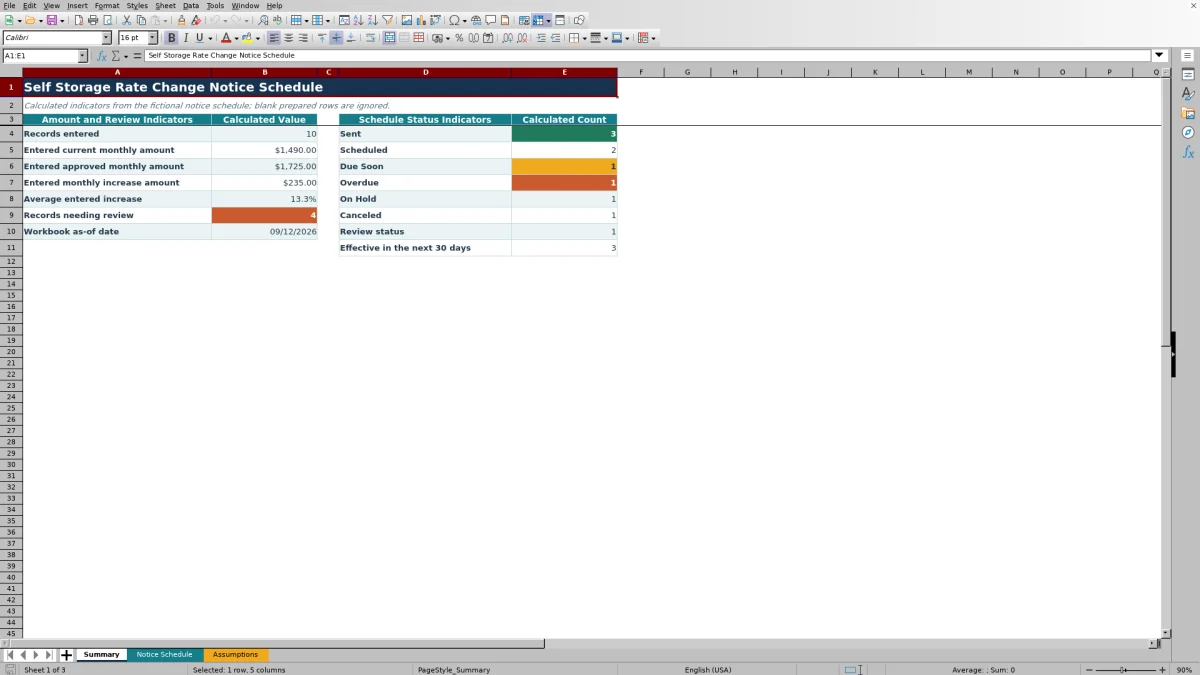
The Summary sheet provides a consolidated view of populated records, entered monthly amounts, increase totals, warnings, schedule statuses, and effective dates occurring within the next 30 days.
Frequently asked questions
What does the self storage rate change notice schedule calculate?
It calculates the monthly increase amount, increase percentage, send due date, effective date, schedule status, and review warning for each populated record.
How does the Excel workbook calculate the send due date?
The workbook adds the editable Planning Lead Time from the Assumptions sheet to the entered Approval Date. The default planning lead time is three days.
What is the difference between Notice Status and Schedule Status?
Notice Status is entered by the user and includes Planned, Sent, On Hold, and Canceled. Schedule Status is calculated from that entry, the sent date, the send due date, TODAY(), and the configured due-soon horizon.
Can the assumptions and dropdown options be changed?
Yes. The Assumptions sheet contains editable planning values and fictional lists for facilities, owners, and notice statuses. Replace the fictional facility and owner options before operational use.
How many rate change notices can the workbook track?
The prepared Notice Schedule supports 100 records in rows 5 through 104. Blank prepared rows are ignored by the Summary record count.
About the editors

Casey MonroeFacility operations editor

Elliot ParkFinance and performance editor