The Self Storage Access Code Assignment Register is an Excel workbook for linking a nonfunctional code identifier to a facility, unit, assigned tenant, activation date, deactivation date, and status. It provides a controlled layout for day-to-day leasing and access-assignment administration without storing a working gate PIN.
The XLSX includes a 150-row register, calculated assignment days and review dates, data-validation lists, warning flags, and a summary with status counts and a chart. Editable assumptions let managers set the as-of date, review interval, upcoming-review window, allowed date range, facility list, and status list.
How this template can help
- Keep tenant, unit, and nonfunctional access-code identifier assignments in one consistent register.
- Spot missing data, duplicate identifiers, and date-order issues through formula-driven review flags.
- Monitor assignments with status counts, upcoming review totals, active share, and the latest activation date.
- Apply editable facility, status, date, and review settings across up to 150 prepared assignment rows.
What the workbook contains
How to get started
1. Configure the assumptions
Set the as-of date, review interval, upcoming review window, and earliest and latest allowed register dates on the Assumptions sheet. Update the facility and status option lists if needed.
2. Enter assignment records
Replace the fictional examples in rows 4 through 153 of the Access Register. Enter the facility, unit, assigned tenant, nonfunctional code identifier, activation date, optional deactivation date, status, and notes. Never enter a working gate PIN.
3. Check the calculated results
Keep the formulas in the Assignment Days, Review Due Date, and Review Flag columns intact. Check flagged records for missing fields, incomplete settings, duplicate identifiers, or an invalid date sequence, then correct the related entry or setting.
4. Monitor and maintain the register
Use the register filter to focus on a facility, status, date, or flagged record. Review the Summary sheet for assignment counts and upcoming reviews, and advance the as-of date as your reporting period changes.
What the Access Code Assignment Register Tracks
This Excel workbook connects nonfunctional code identifiers with self-storage facilities, units, assigned tenants, status values, and activation or deactivation dates. The register also provides columns for assignment duration, review due dates, review flags, and notes.
The prepared entry area covers rows 4 through 153. Facility and status lists come from editable options on the Assumptions sheet, while date entries are limited by configurable earliest and latest dates.
Worked Self-Storage Assignment Scenario
Input: A fictional manager records Fictional Harbor Self Storage, unit A-114, Fictional Tenant 02, identifier DEMO-ID-1002, an activation date of March 16, 2026, and Active status. The deactivation date remains blank. The as-of date is September 12, 2026, the review interval is 180 days, and the upcoming window is 14 days.
Result: The workbook calculates 181 inclusive assignment days and a review due date of September 12, 2026. The active assignment also falls within the Summary sheet's upcoming-review window.
Interpretation: The identifier has reached its scheduled review date as of the workbook's reference date. This does not mean access must automatically end; it means the assignment is due for an operational decision.
Next decision: Confirm whether the assignment should remain active. Record relevant context in Notes, or enter a deactivation date and select Deactivated if the assignment is ending.
Using Status Counts and Review Indicators
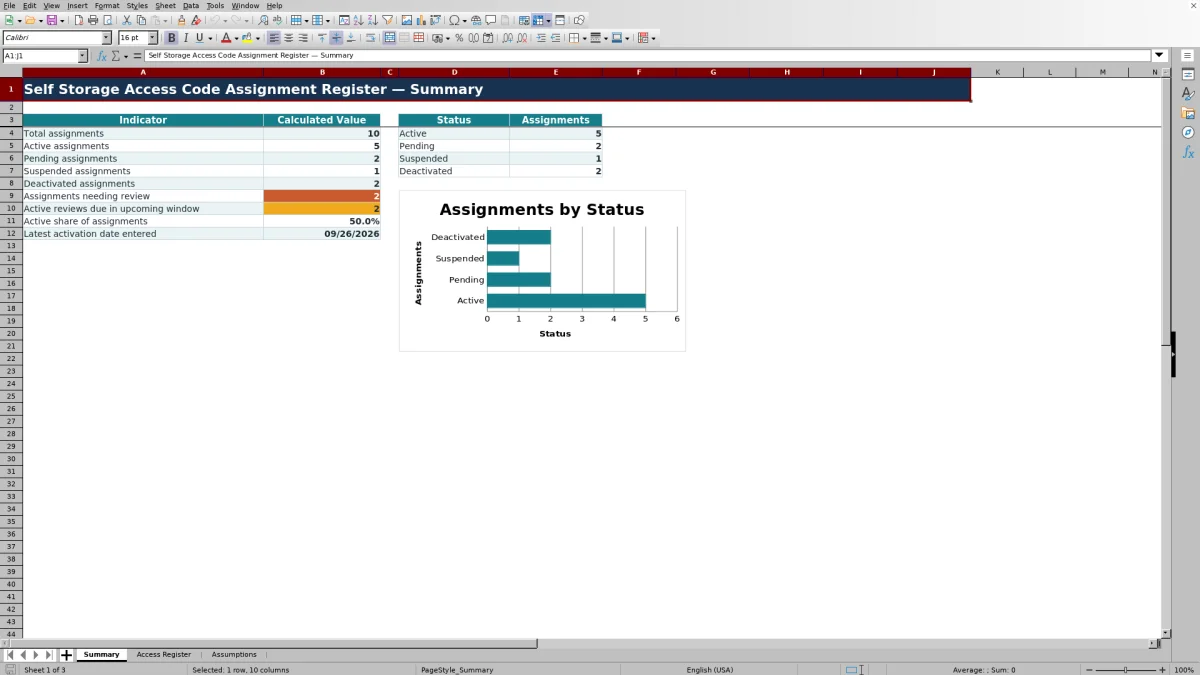
The Summary sheet provides status-level visibility by counting Active, Pending, Suspended, and Deactivated assignments. It also reports total assignments, assignments needing review, active reviews due within the configured window, active share, and the latest activation date entered.
A status chart uses the four status counts. Managers can pair that summary with the Access Register filter to locate the underlying records for a selected facility or status.
Common Errors and Solutions
Resolve the source data when a Review Flag appears rather than changing the calculated flag cell.
- If the flag identifies missing fields, complete the facility, unit, assigned tenant, code identifier, activation date, and status.
- If it identifies settings, enter a valid as-of date and review interval on the Assumptions sheet.
- If it identifies a duplicate identifier, correct the entry or assign a unique nonfunctional identifier.
- If it identifies date order, confirm that the deactivation date is not earlier than the activation date.
If a date is rejected during entry, compare it with the editable earliest and latest allowed register dates.
Workbook Scope and Limits
The file contains 150 prepared assignment rows. Adding records beyond row 153 requires careful extension of formulas, validation rules, formatting, and the ranges used by Summary calculations.
This workbook is an assignment register, not a repository for working gate PINs and not a live credential-provisioning tool. Its calculated results depend on the entered data and the current Assumptions settings, especially the as-of date and review interval.
Comparison with a blank spreadsheet
Use the prepared workbook when its verified fields and calculations fit the facility task. Start with a blank spreadsheet when you need a different model and can build and test every field and formula.
| Method | Setup | Calculations and review | Practical fit |
|---|---|---|---|
| This Excel workbook | Use the prepared structure in the validated file | Review the documented calculations and results | Local editable workflow supported by the workbook |
| Blank spreadsheet | Create the structure from scratch | Build and test every formula and control | A different model designed for the facility |
Frequently asked questions
Should I enter an actual gate PIN in this Excel register?
No. Enter only a nonfunctional code identifier that can be linked to the assignment record. The workbook explicitly instructs users not to store a working gate PIN.
How many access-code assignments can the workbook hold?
The prepared Access Register contains 150 assignment rows, covering rows 4 through 153. Its formulas, validations, filters, and summary ranges are configured for that area.
Which assignment statuses are included?
The supplied status list contains Active, Pending, Suspended, and Deactivated. These options can be edited on the Assumptions sheet and feed the register's status drop-down cells.
How is the review due date calculated?
The workbook adds the editable review interval to the activation date. The supplied interval is 180 days, but an authorized user can set a whole-number interval from 1 through 730 days.
What causes an assignment to need attention?
The Review Flag formulas check for conditions that include missing required fields, incomplete settings, duplicate identifiers, and invalid date order. The Summary sheet counts flags beginning with the word Review.
Can I change the facilities and allowed date range?
Yes. The Assumptions sheet contains editable facility options and earliest and latest allowed register dates. Those settings feed the facility drop-down and date validation used by the Access Register.
About the editors

Casey MonroeFacility operations editor

Elliot ParkFinance and performance editor