This Self Storage Move-Out Checklist Excel workbook organizes each unit's move-out workflow from scheduled departure through ready-to-rent status. It records the facility, unit, owner, dates, balance, six task statuses, and notes in one operating list.
The XLSX calculates Overall Status and Days to Target for up to 100 records, while the Summary sheet counts workflow stages, approaching targets, missing target dates, positive balances, and the ready percentage. Editable assumptions control dropdown choices, the warning window, and the maximum balance allowed for Ready status.
How this template can help
- Keeps notice, balance, inspection, lock removal, access closure, and ready-to-rent work in one unit-level workflow.
- Surfaces overdue records, approaching target dates, missing target dates, and positive balances requiring attention.
- Clarifies responsibility with owner assignments and consistent dropdown statuses.
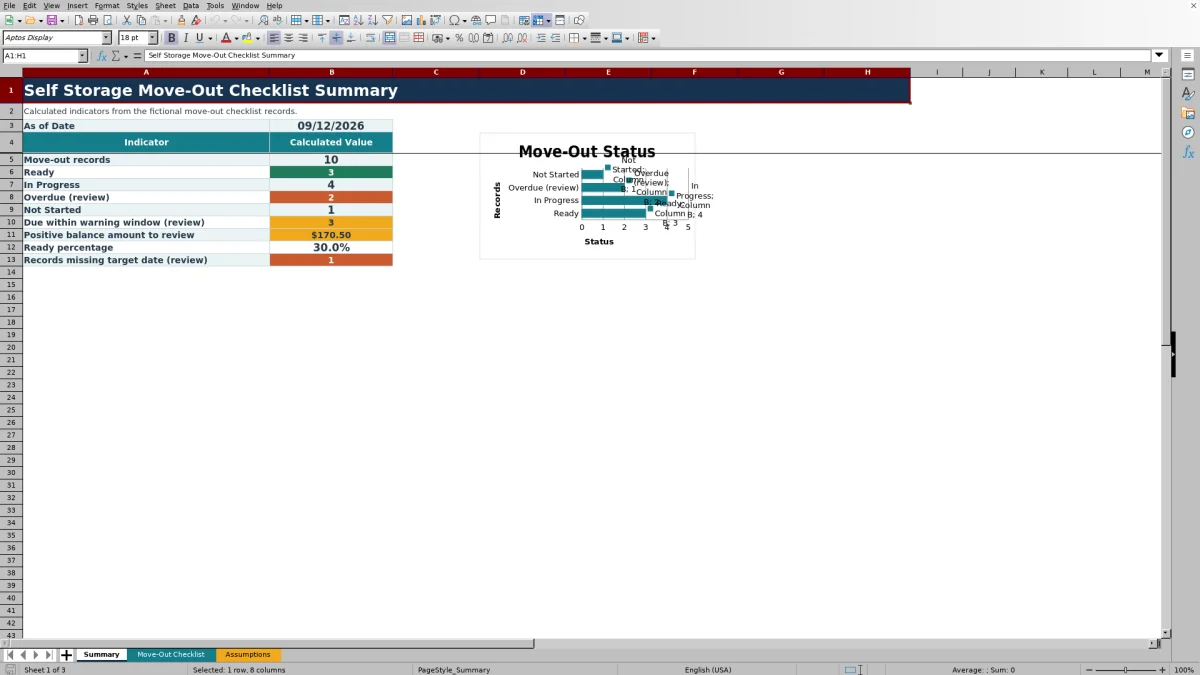
- Provides a concise readiness snapshot with status counts, ready percentage, and a summary chart.
What the workbook contains
How to get started
1. Set the operating assumptions
Open the Assumptions sheet and confirm the facility and owner options. Set the warning days before target and the maximum balance permitted for Ready status. Keep the Pending, Complete, and Not Needed labels because the status formulas use those values.
2. Enter the move-out record
On the Move-Out Checklist sheet, select a facility, enter the unit, and add the scheduled move-out date, balance to review, owner, target ready date, and any useful notes.
3. Update each task status
Use the dropdowns to record the notice, balance review, unit inspection, lock removal, access closure, and ready-to-rent status. The Overall Status and Days to Target fields calculate automatically when the workbook recalculates.
4. Prioritize the next actions
Filter the checklist by owner, facility, or status, then use the Summary sheet to monitor Ready, In Progress, Overdue, and Not Started records. Check approaching targets, missing target dates, and positive balances before updating the related tasks.
Build a Consistent Move-Out Workflow
The checklist uses one record per unit to connect scheduled move-out information with the tasks required to return that unit to inventory. Facility, unit, owner, balance, dates, six workflow statuses, and notes remain visible in the same filtered operating list.
The six status fields cover notice, balance review, unit inspection, lock removal, access closure, and ready-to-rent completion. Dropdown choices help keep entries consistent across facilities and owners.
Understand Overall Status and Timing
A record becomes Ready when the facility and unit are populated, the balance is numeric and no greater than the configured maximum, Ready-to-Rent Status is Complete, and the other five task statuses are Complete or Not Needed.
If a non-ready record has passed its target date, it becomes Overdue. A populated record with all six task fields blank is Not Started; other populated records are In Progress. Days to Target shows the target date minus today's date unless the record is Ready or required fields are missing.
Worked Scenario: Fictional Unit A-114
Input: For fictional unit A-114, enter a $125 Balance to Review, set Notice Status and Lock Removal Status to Complete, leave the other four task statuses Pending, and set the target ready date two days from today.
Result: After recalculation, Overall Status is In Progress and Days to Target is 2. Interpretation: The unit has active work remaining, and the $125 balance exceeds the default maximum balance of $0 for Ready status. Next decision: Address the balance and remaining tasks before the target date, then update each status to reflect completion.
Common Errors and Solutions
- Blank status: Confirm that both Facility and Unit contain values. The Overall Status formula intentionally returns blank when either field is missing.
- Unexpected status: Confirm that the balance is numeric, check the target date, and use the exact dropdown values for each task.
- If Ready does not appear, compare the balance with the maximum set on the Assumptions sheet and confirm that Ready-to-Rent Status is Complete and the other five tasks are Complete or Not Needed.
- If Days to Target is blank, add a facility, unit, and target date. The field also stays blank for records already marked Ready.
- If a date entry is rejected, enter a valid Excel date from January 1, 2021, through December 31, 2036.
Comparison with a blank spreadsheet
Use the prepared workbook when its verified fields and calculations fit the facility task. Start with a blank spreadsheet when you need a different model and can build and test every field and formula.
| Method | Setup | Calculations and review | Practical fit |
|---|---|---|---|
| This Excel workbook | Use the prepared structure in the validated file | Review the documented calculations and results | Local editable workflow supported by the workbook |
| Blank spreadsheet | Create the structure from scratch | Build and test every formula and control | A different model designed for the facility |
Workbook Limits
The checklist is prepared for 100 records in rows 5 through 104. Extending the operating range requires corresponding changes to formulas, validations, filters, conditional formatting, and Summary references.
Status and timing calculations depend on entered data, the TODAY function, and workbook recalculation. The file does not independently confirm a unit's physical condition, account balance, lock removal, or access closure. The Summary total includes only positive balances, and readiness follows the configured balance threshold and recorded task statuses.
Use the Summary for Daily Priorities
The Summary sheet consolidates the active record count, four overall status totals, ready percentage, positive balance amount, approaching targets, and records missing target dates. Its chart compares Ready, In Progress, Overdue, and Not Started records.
Start with Overdue records, then check non-ready units inside the warning window. Use filters on the checklist to narrow the resulting work by facility or owner and update the underlying task fields as work progresses.
Frequently asked questions
What makes a move-out record Ready?
A populated record is Ready when its numeric balance is no greater than the maximum balance configured on the Assumptions sheet, Ready-to-Rent Status is Complete, and the notice, balance review, inspection, lock removal, and access closure fields are each Complete or Not Needed.
What do the other Overall Status values mean?
Overdue means a non-ready record has passed its target ready date. Not Started means the facility and unit are populated but all six task fields are blank. In Progress covers populated records that are not Ready, Overdue, or Not Started.
Can the dropdown options and readiness settings be changed?
Yes. The Assumptions sheet contains editable facility and owner lists, warning days before target, and the maximum balance for Ready status. The task formulas depend on the exact Pending, Complete, and Not Needed labels.
How many move-out records can the checklist hold?
The prepared checklist contains 100 operating rows, from row 5 through row 104. The formulas for Overall Status and Days to Target are already present across those rows.
Why is Days to Target blank?
Days to Target remains blank when the facility, unit, or target ready date is missing, or when Overall Status is Ready. Otherwise, it returns the target ready date minus the current date after recalculation.
About the editors

Casey MonroeFacility operations editor

Elliot ParkFinance and performance editor