This self storage unit availability board is an Excel workbook for tracking each unit’s facility, size, monthly rate, operating status, status date, review date, board owner, and notes. It calculates days in status and displays review flags for records that need attention.
Self-storage owners, facility managers, regional operators, and acquisition teams can use the XLSX file to monitor available inventory, filter units by size or status, and view summary counts, vacant-ready square footage, listed monthly rates, and review activity.
How this template can help
- Keep vacant-ready, reserved, occupied, overlocked, and out-of-service units organized in one operating board.
- Filter unit records by facility, size, status, date, owner, monthly rate, or review flag.
- Spot missing, overdue, and approaching review dates with formula-based status flags.
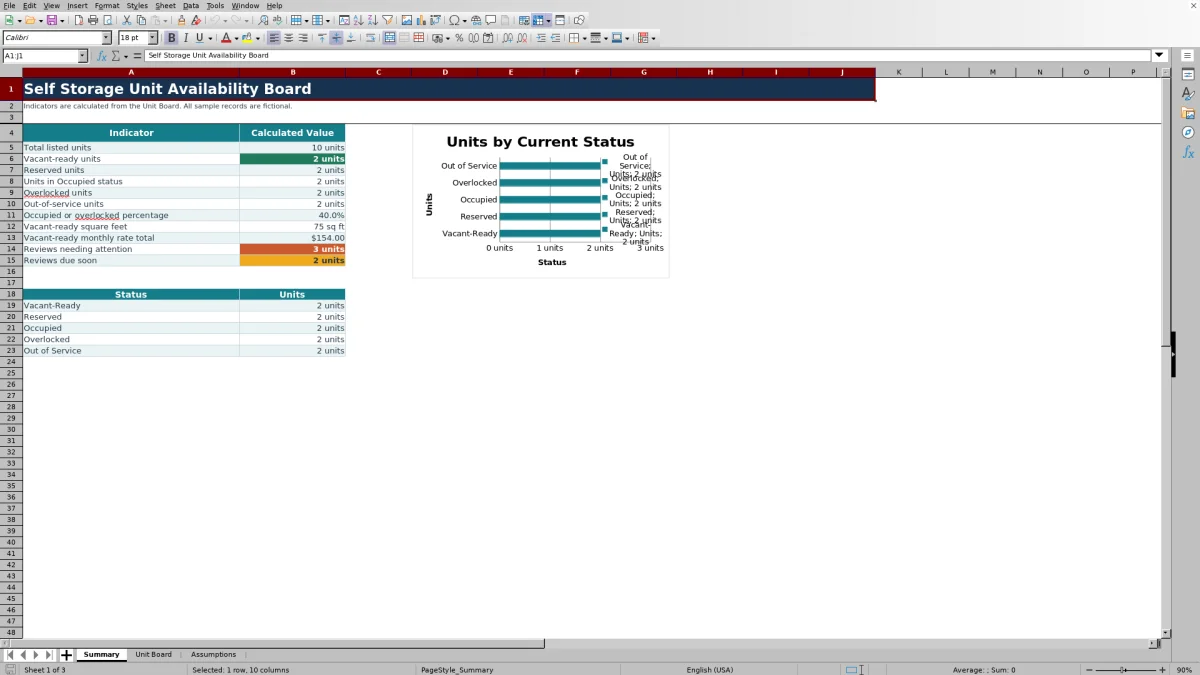
- Use calculated summary indicators and a status chart to support daily leasing and operating decisions.
What the workbook contains
How to get started
1. Configure the operating assumptions
Open the Assumptions sheet and review the five statuses, review-date requirements, three-day due-soon window, record limits, and prepared facility and board-owner lists. Replace the fictional list entries with the appropriate operating names while keeping entries within the prepared list cells.
2. Enter unit records
Use rows 5 through 104 on the Unit Board. Complete Facility and Unit so the record is included in the main counts, then enter size, monthly rate, status, Status Since date, board owner, and any useful notes.
3. Add required review dates
Enter a Review Due date for Reserved, Overlocked, and Out of Service units under the default assumptions. The workbook calculates Days in Status and assigns the applicable Review Flag.
4. Work the board each day
Filter the Unit Board to find units by facility, size, status, or review condition. Check the Summary sheet for status counts, vacant-ready square footage, listed vacant-ready monthly rates, and reviews that need attention.
Daily Unit Availability and Leasing Visibility
Daily status view means the operating team can record each unit as Vacant-Ready, Reserved, Occupied, Overlocked, or Out of Service. The Summary sheet counts complete records by status and calculates the combined occupied-or-overlocked percentage.
For leasing work, the board also totals vacant-ready square footage and the monthly rates listed for those units. AutoFilter on the Unit Board supports focused searches without changing the underlying records.
Worked Scenario for a Vacant-Ready Unit
Input: A manager adds fictional unit FIC-C301 at Cedar Kite Self Storage, enters 50 square feet, an $89 monthly rate, selects Vacant-Ready, and uses today as the Status Since date. Facility and Unit are both completed.
Result: After Excel recalculates, total listed units and vacant-ready units each increase by one. Vacant-ready square footage increases by 50, the listed vacant-ready monthly rate total increases by $89, and Days in Status initially displays zero.
Interpretation: The complete row identifies a 50-square-foot unit that is currently available for leasing under the workbook’s status definition.
Next decision: The manager can filter Status to Vacant-Ready and Size to 50 square feet, then include the fictional unit in the next relevant availability conversation.
Review Flags and Follow-Up Timing
Attention queue is created from the status rules, Review Due date, current date, and configurable due-soon window. Under the default assumptions, Reserved, Overlocked, and Out of Service require review dates.
- Review date needed appears when a required date is blank or cannot be evaluated.
- Review overdue appears when the required date is before today.
- Due soon appears when the date falls between today and the end of the configured window.
- Review current appears when the required date is beyond that window.
The Summary sheet separately counts reviews needing attention and reviews due soon.
Common Errors and Solutions
Common fixes address the most likely entry issues without changing the workbook’s formulas.
- If a row is missing from the principal Summary counts, complete both Facility and Unit.
- If Review Flag says Review date needed, enter a valid Review Due date for a status that requires one, or correct an incorrectly selected status.
- If Excel rejects a Status Since date, use a date from January 1, 2006 through today. Review Due dates must fall from January 1, 2006 through December 31, 2036 under the default limits.
- If a size or rate is rejected, check the minimum and maximum values on the Assumptions sheet. The default unit-size range is 1 through 1,000 whole square feet.
- If a facility or owner is unavailable in a dropdown, replace an entry in the corresponding prepared list on the Assumptions sheet.
Workbook Limits and Boundaries
Capacity boundary matters when planning ongoing use. The Unit Board contains 100 prepared record rows, from row 5 through row 104. Its default lists provide five statuses, three facility slots, and four board-owner slots.
The workbook does not include a dedicated size-band summary or PivotTable, so size-specific availability is found with Unit Board filters. It also contains no Excel tables or defined names. TODAY-based calculations change as the file date advances, and all included sample facilities, employees, and unit records are fictional.
Comparison with a blank spreadsheet
Use the prepared workbook when its verified fields and calculations fit the facility task. Start with a blank spreadsheet when you need a different model and can build and test every field and formula.
| Method | Setup | Calculations and review | Practical fit |
|---|---|---|---|
| This Excel workbook | Use the prepared structure in the validated file | Review the documented calculations and results | Local editable workflow supported by the workbook |
| Blank spreadsheet | Create the structure from scratch | Build and test every formula and control | A different model designed for the facility |
Using Size Filters for Leasing Requests
The Unit Board records each unit’s size as whole square feet and validates entries against the configured limits. To respond to a size-based request, filter Status to Vacant-Ready and then apply the needed value or numeric condition to Size (sq ft).
Because the workbook has no dedicated size-band report, the filtered rows are the operational source for identifying matching units. The Summary remains focused on overall status counts, vacant-ready square footage, listed vacant-ready monthly rates, and review activity.
Frequently asked questions
Which unit statuses are included in the Excel workbook?
The default statuses are Vacant-Ready, Reserved, Occupied, Overlocked, and Out of Service. Their meanings and review-date requirements are maintained on the Assumptions sheet.
How many units can the availability board track?
The Unit Board provides 100 prepared entry rows, covering rows 5 through 104. The related formulas, validations, filter range, and summary calculations use that prepared area.
Can the workbook show vacant units by size?
Yes. Filter the Unit Board by Vacant-Ready status and then filter the Size (sq ft) column for the required value or range. The workbook does not include a separate size-band summary.
What causes a Review Flag to appear?
A flag appears when the selected status requires a Review Due date. Depending on the entry and current date, the result can be Review date needed, Review overdue, Due soon, or Review current.
Are the facilities, employees, and unit records real?
No. The included facilities, employee names, unit identifiers, and example notes are explicitly fictional sample data and should be replaced with the operator’s own records.
About the editors

Casey MonroeFacility operations editor

Elliot ParkFinance and performance editor