This self storage reservation waitlist Excel workbook gives facility teams one place to record prospective tenant requests, desired move-in dates, size and feature needs, budget limits, assigned owners, statuses, and follow-up dates.
It calculates days waiting and priority, counts possible matches against entered available units, and summarizes open requests, overdue follow-ups, upcoming follow-ups, and records flagged for match review. All included sample records are fictional.
How this template can help
- Keep prospective tenant requests organized in a consistent leasing queue.
- Prioritize outreach using follow-up dates, desired move-in timing, and days waiting.
- Screen available inventory against each prospect’s facility, size, feature, date, and budget requirements.
- Monitor open requests, status counts, follow-up workload, and match reviews from one summary.
What the workbook contains
How to get started
1. Configure the assumptions
Review the priority thresholds and stable lists for facilities, unit sizes, features, waitlist statuses, assigned owners, and unit statuses. Update the yellow cells when your operating needs change.
2. Enter available units
Add locally confirmed inventory to the Available Units sheet, including facility, unit identifier, size, feature, available date, monthly amount, status, and notes. Check the Record Check column for incomplete entries.
3. Add waitlist requests
Enter one prospective tenant request per row on the Waitlist sheet. Complete the facility, requested size and feature, dates, maximum monthly amount, owner, status, and follow-up information needed for the calculations.
4. Work the follow-up queue
Use the calculated priority, days waiting, potential match count, and review flag to plan outreach. Confirm current unit details before contacting a prospect, then update the request status and next follow-up date.
What the Self Storage Waitlist Tracks
The workbook organizes request details such as prospect alias, facility, requested square footage, requested feature, request date, desired move-in date, maximum monthly amount, assigned owner, status, follow-up due date, and notes. Calculated columns show days waiting, priority, potential matches, and a review flag.
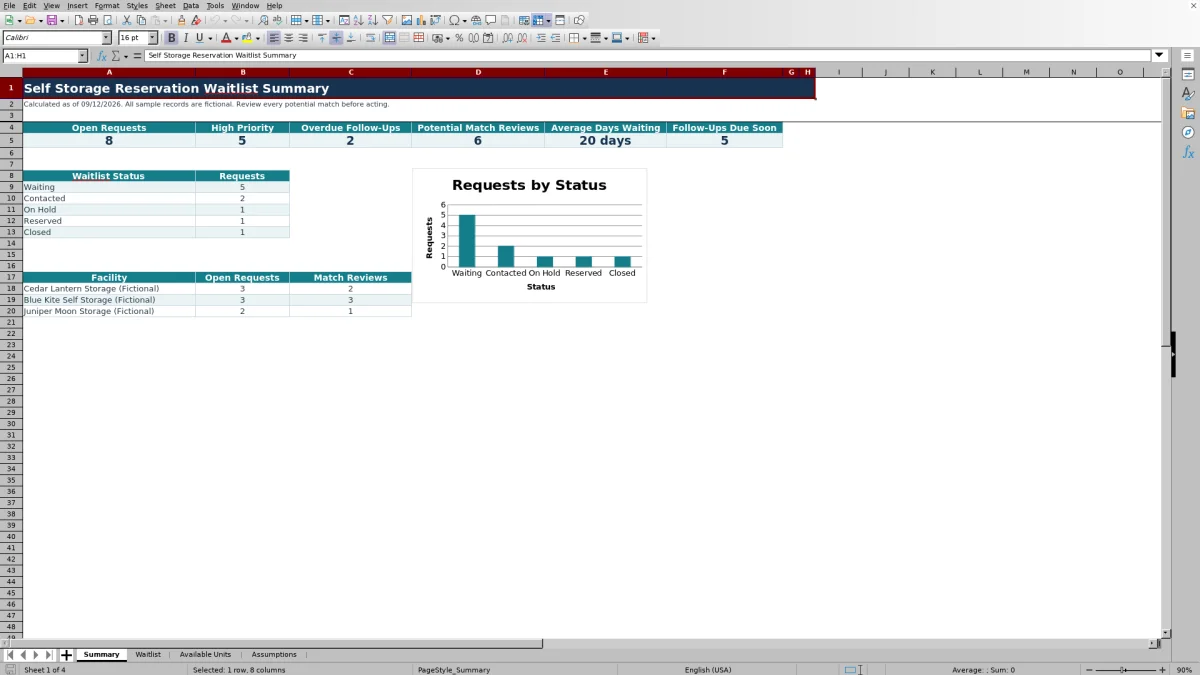
The Summary sheet rolls those records into open-request, priority, follow-up, wait-time, status, facility, and match-review views for facility managers and regional operators.
How Potential Unit Matching Works
The matching formula applies exact criteria. Facility, unit size, and feature must match the request. The unit’s available date must be on or before the desired move-in date, its monthly amount must be at or below the prospect’s maximum, and its status must be Available.
A positive count produces the Potential match - review flag. The result identifies a record that needs attention; it does not reserve a unit, identify the selected unit, or guarantee availability.
Worked Scenario for a Fictional Request
Input: Fictional Prospect 02 requests a 100-square-foot Drive-Up Access unit at Blue Kite Self Storage, with a desired move-in date of 10/02/2026 and a maximum monthly amount of $140.
Result: The available-unit list contains a fictional 100-square-foot Drive-Up Access unit at the same facility with an available date of 10/02/2026, a monthly amount of $140, and an Available status. The request therefore receives a positive potential-match count and the Potential match - review flag.
Interpretation: Equal date and amount boundaries satisfy the workbook’s on-or-before and at-or-below tests.
Next decision: Confirm the unit’s current details, decide whether to contact the prospect, and then update the request status or follow-up date.
Common Errors and Solutions
Common fixes address most unexpected results:
- If a match count is blank, complete the request ID, facility, size, feature, desired move-in date, maximum monthly amount, and active status.
- If a suitable-looking unit is not counted, verify that its status is Available rather than Held for Review or Unavailable.
- If a unit still does not match, compare the facility, size, and feature entries exactly, then check the available date and monthly amount limits.
- If priority appears unexpected, check the request status, follow-up due date, desired move-in date, current date, and editable thresholds.
- If Record Check says Complete required fields, complete the available-unit fields before relying on that record.
Operational Limits to Consider
Limits keep the workbook focused on a defined waitlist process. Its preformatted formulas and validation cover 100 request rows and 100 available-unit rows. Matching uses exact facility, size, and feature values rather than substitute sizes, flexible features, or fuzzy text.
- The match result is a count and does not select a specific unit identifier.
- The workbook does not create reservations or send prospect communications.
- Calculations based on TODAY() change as the current date changes.
- Reserved and Closed requests are excluded from active wait-time, priority, and matching outputs.
- Inventory accuracy depends on the available-unit records entered by the operator.
Comparison with a blank spreadsheet
Use the prepared workbook when its verified fields and calculations fit the facility task. Start with a blank spreadsheet when you need a different model and can build and test every field and formula.
| Method | Setup | Calculations and review | Practical fit |
|---|---|---|---|
| This Excel workbook | Use the prepared structure in the validated file | Review the documented calculations and results | Local editable workflow supported by the workbook |
| Blank spreadsheet | Create the structure from scratch | Build and test every formula and control | A different model designed for the facility |
Using the Summary for Daily Leasing Work
Start with high-priority requests, overdue follow-ups, and potential match reviews. Then check follow-ups due within the configured reporting window and compare open-request counts by facility.
Status totals help managers distinguish Waiting, Contacted, On Hold, Reserved, and Closed records. Because the metrics use live worksheet data and TODAY(), teams should keep request statuses, follow-up dates, and available-unit records current.
Frequently asked questions
Does the Excel waitlist reserve a storage unit automatically?
No. It counts units that meet the configured matching criteria and flags the request for review. Staff must confirm current unit details and complete any reservation through their normal leasing process.
What makes an available unit a potential match?
The facility, size, and feature must match the request. The available date must be on or before the desired move-in date, the monthly amount must be at or below the prospect’s maximum, and the unit status must be Available.
How does the workbook assign follow-up priority?
On Hold requests receive Low priority. Active requests receive High priority for an overdue follow-up or a desired move-in date on or before the current date plus the configured urgent window. Requests reaching the long-wait threshold receive Medium priority, and other active requests receive Normal priority. Reserved and Closed records do not receive a priority.
Can the facilities, sizes, features, owners, and statuses be changed?
Yes. The Assumptions sheet contains the stable lists used by the dropdowns, along with the urgent move-in, long-wait, and follow-up reporting thresholds. Recheck existing records after changing a list value or threshold.
Why is a request showing no current match?
A unit may differ by facility, size, or feature; become available after the desired move-in date; exceed the maximum monthly amount; or have a status other than Available. Incomplete request fields can also leave the match calculation blank rather than showing a count.
About the editors

Casey MonroeFacility operations editor

Elliot ParkFinance and performance editor