This self storage key and lock inventory Excel workbook helps facility owners, managers, regional operators, and acquisition teams organize cylinder locks, disc locks, overlock keys, spare keys, and tamper seals by facility, quantity, status, custodian, cost, and unit assignment.
Use the XLSX spreadsheet to enter up to 150 inventory records, apply controlled lists and entry limits, calculate inventory amounts, monitor review dates and flags, and view summary indicators and units by status. The included facilities, people, units, and sample records are fictional.
How this template can help
- Keeps stock, issued items, and unit assignments in one structured inventory.
- Shows quantities and recorded inventory amounts without separate manual calculations.
- Surfaces duplicate IDs, missing fields, and assignment inconsistencies through record-level flags.
- Gives regional and acquisition teams a consistent snapshot of the facilities entered in the workbook.
What the workbook contains
How to get started
1. Set operating limits and lists
On the Assumptions sheet, adjust the review window, maximum quantity, maximum unit cost, accepted date range, and list entries for facilities, item types, statuses, and custodians.
2. Enter one inventory record per row
On the Inventory sheet, complete the inventory ID, facility, item type, reference, quantity, inventory date, unit cost, custodian, and status. Add an assigned unit when the item is assigned or issued.
3. Resolve entry flags
Check the Review Flag column for duplicate IDs, missing required fields, and conflicts between status and unit assignment. Correct the related source fields rather than overwriting the formula.
4. Read the operating summary
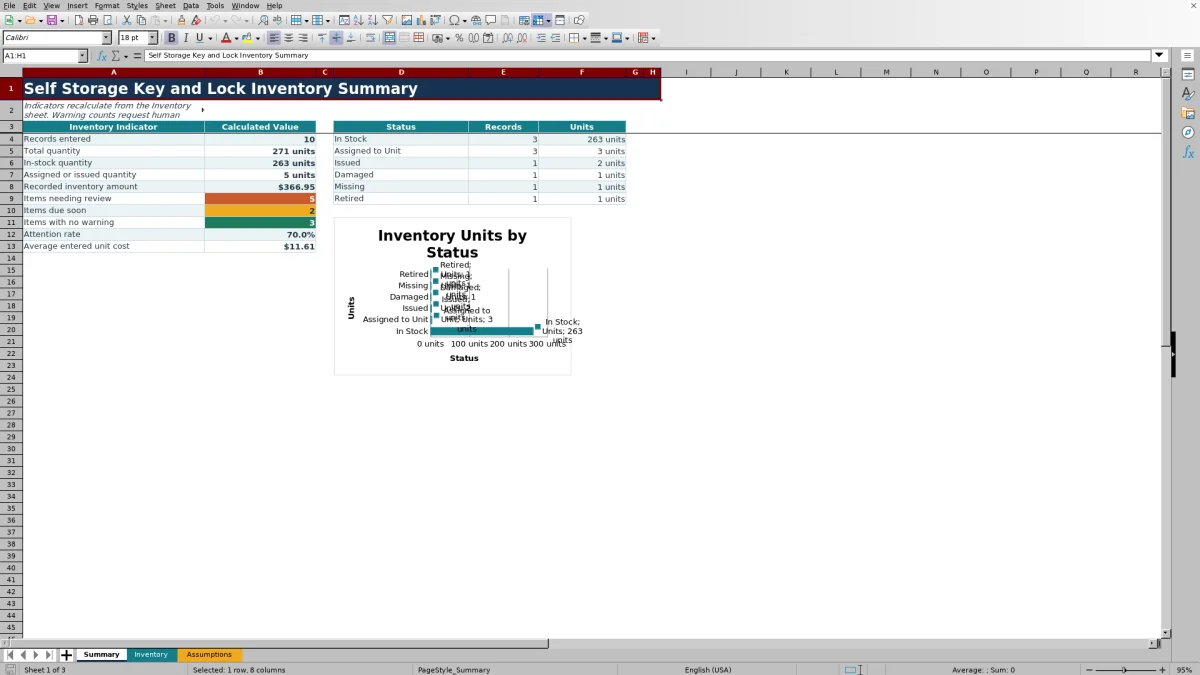
Use the Summary sheet to check total quantity, in-stock quantity, assigned or issued quantity, recorded inventory amount, warning indicators, average entered unit cost, and status totals before making the next inventory decision.
Structured Inventory for Self Storage Operations
Use one record per row to connect a unique inventory ID with its facility, item type, inventory reference, quantity, status, custodian, dates, cost, notes, and any assigned unit. The prepared item types cover cylinder locks, disc locks, overlock keys, spare keys, and tamper seals.
Status choices include In Stock, Assigned to Unit, Issued, Damaged, Missing, and Retired. This structure lets an operator distinguish available inventory from items already connected to a unit or otherwise removed from normal stock.
Worked Scenario: From Entry to Decision
Input: A fictional North facility enters 12 cylinder locks at $14.50 each with an In Stock status and no assigned unit. It also enters one cylinder lock at $14.50 with an Assigned to Unit status and Fictional Unit A-101.
Result: The two inventory amounts calculate to $174.00 and $14.50. The summary shows 13 total units, 12 in-stock units, one assigned or issued unit, and $188.50 in recorded inventory amount.
Interpretation: Twelve locks remain available in stock, while one lock is tied to the fictional unit. The status and assignment entries are consistent with the workbook rules.
Next decision: The facility manager can compare the 12 available locks with the facility's operating target and decide whether to retain the current quantity, assign another lock, or plan a replenishment entry.
Status and Unit Assignment Controls
An In Stock record should not contain an assigned unit. A record marked Assigned to Unit or Issued should identify the related unit. The formula-driven flag column calls attention to these mismatches while preserving the entered source data.
The summary reports both record counts and unit quantities for the configured statuses. This distinction matters because one record can represent multiple units, especially for stock held in a cabinet or other facility inventory location.
Common Errors and Solutions
Common fixes begin with the flagged row and its related input fields.
- Duplicate inventory ID: assign a unique ID to each record.
- Required field flag: complete the missing facility, item type, reference, quantity, inventory date, custodian, or status.
- Unit missing: add an assigned unit when the status is Assigned to Unit or Issued.
- Unit on stock item: remove the assigned unit or select the status that reflects the item's actual use.
- Rejected quantity, cost, or date: compare the entry with the current limits on the Assumptions sheet.
Capacity, Settings, and Limits
The Inventory sheet provides 150 entry rows, from row 5 through row 154. Default settings limit quantity to 1,000 units per row, unit cost to $500, and inventory or review dates to January 1, 2021 through December 31, 2031. The default review window is 14 days.
The workbook does not provide external tracking, automated notifications, or access-control integration. Its calculations depend on the completeness and accuracy of entered records, and recorded inventory amount is quantity multiplied by entered unit cost.
Comparison With a Paper Inventory Log
The Excel workbook is more suitable when an operator needs consistent fields, entry controls, calculated amounts, status summaries, flags, filtering, and a chart. A paper inventory log can be suitable for a brief count where spreadsheet access is unavailable, but calculations and consolidation remain manual.
| Criterion | Self Storage Key and Lock Inventory Excel workbook | Paper inventory log |
|---|---|---|
| Record structure | Provides 150 prepared rows with consistent inventory fields. | Allows flexible handwritten entries but depends on the recorder to use consistent fields. |
| Entry controls | Uses drop-down lists and quantity, cost, and date validation. | Relies on written instructions and manual checking. |
| Calculations | Calculates inventory amounts and summary indicators from entered records. | Requires manual calculations or later transcription. |
| Exception visibility | Flags duplicate IDs, missing required fields, and assignment inconsistencies. | Requires the reader to identify inconsistencies during inspection. |
| Operational fit | Suitable for recurring facility, regional, or acquisition inventory analysis in a spreadsheet. | Suitable for temporary offline counting or simple field notes. |
Using the Inventory Across Operating Roles
Facility managers can filter records to focus on a location, status, item type, or custodian. Owners and regional operators can use the summary indicators to understand entered quantities, amounts, upcoming dates, and flagged records.
Acquisition teams can use a completed copy as a structured snapshot of the inventory information supplied for the facilities being assessed. The fictional examples illustrate the format and should be replaced with the operator's own records.
Frequently asked questions
What items can this self storage inventory workbook track?
The prepared item list includes cylinder locks, disc locks, overlock keys, spare keys, and tamper seals. The Assumptions sheet contains the list entries used by the Inventory drop-down.
How does the workbook handle stock and unit assignments?
Each record has a status and an optional Assigned Unit field. Assigned to Unit and Issued records should include a unit, while In Stock records should leave the unit blank. Inconsistent combinations produce a record-level flag.
Can facilities, custodians, statuses, and limits be changed?
Yes. The Assumptions sheet stores the stable list entries, 14-day default review window, maximum quantity, maximum unit cost, and accepted date range that feed the Inventory sheet's controls.
What does the Summary sheet calculate?
It calculates records entered, total quantity, in-stock quantity, assigned or issued quantity, recorded inventory amount, warning indicators, attention rate, average entered unit cost, and record and unit totals by configured status.
Does the XLSX connect to access-control or notification systems?
No. The workbook is a standalone inventory spreadsheet and does not provide external tracking, automated notifications, or access-control integration.
About the editors

Casey MonroeFacility operations editor

Elliot ParkFinance and performance editor