This self storage rental application tracker is an Excel workbook for recording each applicant alias, requested facility and unit, key dates, quoted monthly rate, owner, verification status, application status, and notes.
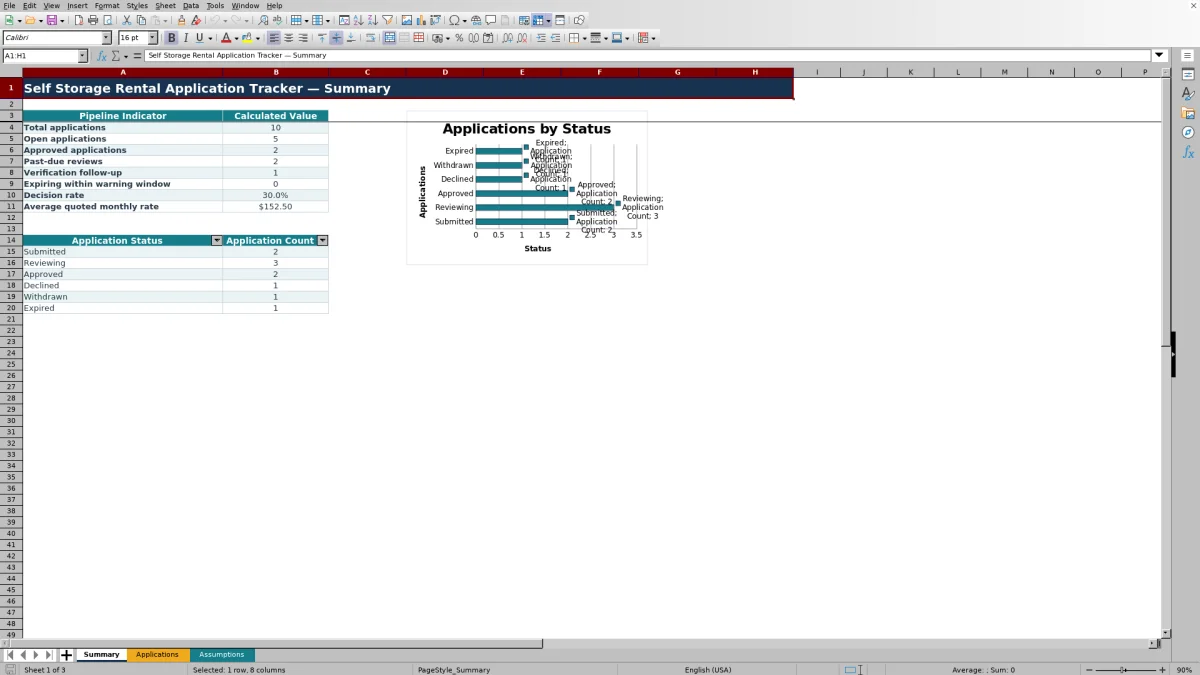
The XLSX combines a 120-row application table with calculated decision due dates, expiration dates, days open, review flags, validated entries, editable assumptions, and a summary of pipeline counts, decision rate, and average quoted monthly rate.
How this template can help
- Keep application details, requested units, ownership, dates, statuses, and notes in one organized register.
- Surface past-due reviews, verification follow-up, missing inputs, and approaching expirations through calculated review flags.
- Standardize recurring entries with dropdown lists and validate dates and quoted monthly rates against configured limits.
- Monitor open, approved, declined, withdrawn, and expired applications from a concise pipeline summary.
What the workbook contains
How to get started
1. Set the operating limits
Open the Assumptions sheet and confirm the review target, approval hold period, expiration warning window, allowed dates, quoted-rate limits, and available list options.
2. Enter each application
Use the yellow editable cells on the Applications sheet to add the application ID, fictional applicant alias, facility, requested unit, dates, quoted monthly rate, owner, verification status, application status, and notes.
3. Update verification and decision details
Maintain the verification and application statuses as work progresses. Enter the decision date when applicable, then use the calculated due date, expiration date, days open, and review flag to plan the next action.
4. Review the pipeline summary
Use the Summary sheet to check total, open, approved, past-due, follow-up, and soon-to-expire counts, along with the decision rate, average quoted monthly rate, and status chart.
Organize the Self Storage Application Pipeline
The centralized application register gives facility teams a consistent place to record the applicant alias, requested facility and unit, received date, desired start date, quoted monthly rate, application owner, verification status, application status, and notes. The Excel table can be filtered to focus on a facility, owner, status, or other recorded field.
Use Dates and Statuses to Prioritize Work
Calculated timing connects the date received to the review target and connects an approved decision date to the approval hold period. Days open continue to use the current date for active applications, while closed outcomes use the recorded decision date when available. The review flag identifies conditions such as missing input, verification follow-up, past-due review, a needed decision date, and an approaching expiration.
Worked Scenario: From Submission to Decision
Input: A fictional application is received on September 11, 2026, with a quoted monthly rate of $55, a Submitted status, and a Not started verification status. The review target is five days.
Result: The workbook calculates September 16, 2026, as the decision due date and updates days open from the current date while the application remains active.
Interpretation: If the application remains open after the due date, the review flag identifies it as past due. If it is approved with a September 18 decision date and the approval hold is seven days, the expiration date becomes September 25.
Next decision: Update the verification and application statuses, record the decision date when applicable, and monitor the calculated expiration before determining the next operational step.
Common Errors and Solutions
Common fixes begin with checking the fields that drive formulas and summary counts.
- If calculated fields stay blank, confirm that the row has an Application ID and the required date inputs.
- If the review flag says Missing input, complete the received date, verification status, and application status.
- If the flag says Decision date needed, enter the decision date for the approved application.
- If Excel rejects a date or quoted rate, compare the entry with the minimum and maximum values on the Assumptions sheet.
- If a summary count is unexpected, use an application status from the provided dropdown and confirm that the Application ID is present.
Workbook Limits and Operating Boundaries
Operational limits keep the tracker focused. The application table contains 120 preformatted rows, from row 4 through row 123. Decision due dates and approval expirations use calendar-day assumptions rather than a business-day calendar. Date and rate entries must remain within the configured validation boundaries. Review flags change when TODAY() recalculates, and the workbook does not send notices or perform outside actions.
Comparison with a blank spreadsheet
Use the prepared workbook when its verified fields and calculations fit the facility task. Start with a blank spreadsheet when you need a different model and can build and test every field and formula.
| Method | Setup | Calculations and review | Practical fit |
|---|---|---|---|
| This Excel workbook | Use the prepared structure in the validated file | Review the documented calculations and results | Local editable workflow supported by the workbook |
| Blank spreadsheet | Create the structure from scratch | Build and test every formula and control | A different model designed for the facility |
Review the Summary Before the Next Decision
The Summary sheet turns application records into operating indicators. Facility managers can review total and open applications, approved applications, past-due reviews, verification follow-up, approaching expirations, decision rate, and average quoted monthly rate. The separate status count and chart show how many applications are Submitted, Reviewing, Approved, Declined, Withdrawn, or Expired.
Frequently asked questions
What information does the self storage rental application tracker record?
It records the application ID, fictional applicant alias, facility, requested unit, received date, desired start date, quoted monthly rate, application owner, verification status, application status, decision date, and notes. It also calculates decision due dates, expiration dates, days open, and review flags.
How are decision due dates and expiration dates calculated?
The decision due date adds the review-target days from the Assumptions sheet to the date received. For approved or expired applications with a decision date, the expiration date adds the configured approval-hold days to that decision date.
Which application and verification statuses are available?
Application statuses are Submitted, Reviewing, Approved, Declined, Withdrawn, and Expired. Verification statuses are Not started, In review, Complete, and Needs follow-up.
How many applications can the workbook hold?
The Applications sheet provides 120 preformatted data rows in the ApplicationTracker table, covering rows 4 through 123.
Does the workbook send reminders or update outside systems?
No. The workbook calculates review flags and summary indicators, but it does not send notices or perform actions outside the XLSX file.
About the editors

Casey MonroeFacility operations editor

Elliot ParkFinance and performance editor