A self storage rent roll provides a point-in-time record of facilities, units, tenants or accounts, occupancy status, contracted monthly rates, paid-through dates, and account balances.
This Excel workbook includes 150 prepared rent roll rows, calculated account indicators, a facility-level summary, and editable assumptions for the reporting date, thresholds, facility options, and accepted date range.
How this template can help
- Creates a consistent point-in-time record of unit and tenant account information.
- Separates occupied, vacant, reserved, and offline units for clearer occupancy reporting.
- Calculates next due dates, rent per square foot, and days past the paid-through date.
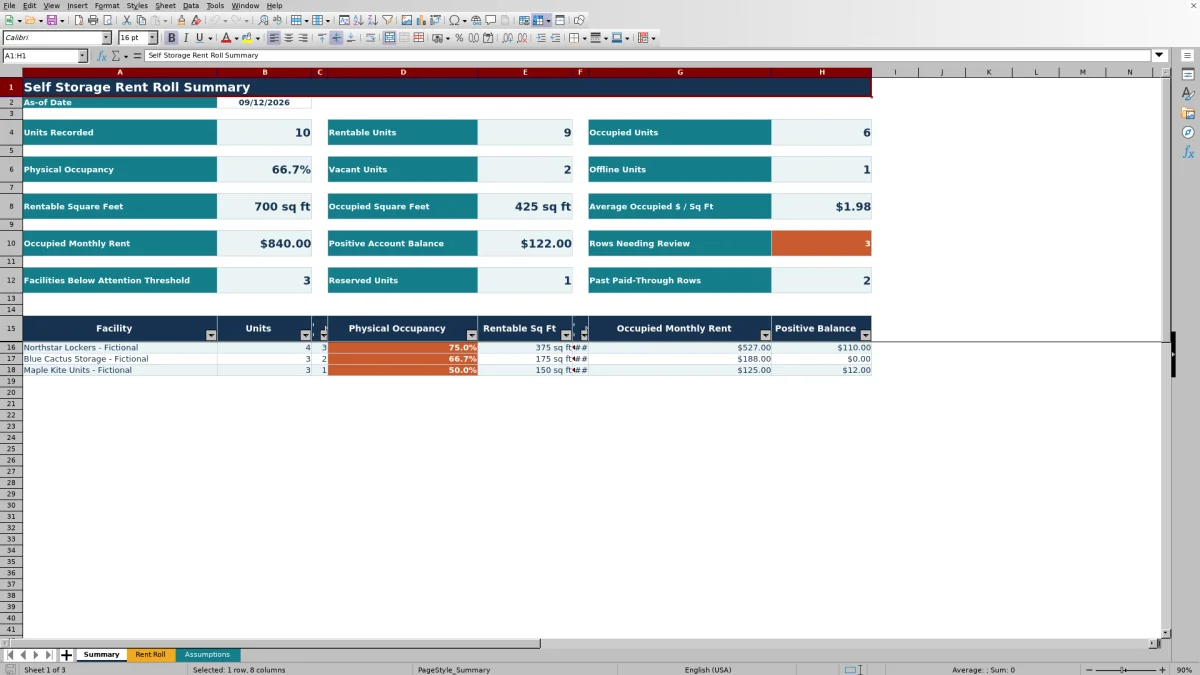
- Summarizes occupancy, square footage, contracted rent, positive balances, and flagged rows by facility.
What the workbook contains
How to get started
1. Set the reporting assumptions
Open the Assumptions sheet and update the as-of date, balance review threshold, occupancy attention threshold, accepted paid-through date range, and three facility options.
2. Enter the rent roll
Use the Rent Roll sheet to enter each facility, unit, size, tenant or account, occupancy status, monthly contracted rate, paid-through date, account balance, and any notes.
3. Check the calculated columns
Inspect the next due date, monthly rate per square foot, days past paid-through, and Review Status columns. Resolve incomplete or inconsistent entries before relying on the totals.
4. Read the summary
Use the Summary sheet to assess unit and square-foot occupancy, occupied monthly rent, positive balances, reserved and offline units, and facility-level indicators as of the selected date.
A Point-in-Time View of the Rent Roll
The workbook organizes unit and tenant account information into a point-in-time view controlled by the as-of date on the Assumptions sheet. Each recorded row requires both a facility and unit to contribute to most summary calculations.
The Summary sheet reports recorded, rentable, occupied, vacant, reserved, and offline units. It also shows rentable and occupied square feet, occupied monthly rent, average occupied rent per square foot, positive balances, past paid-through rows, and rows needing attention.
Inputs and Calculated Results
The editable inputs are facility, unit, size, tenant or account, occupancy status, monthly contracted rate, paid-through date, account balance, and notes. Validation controls provide facility and status lists and constrain applicable numbers and dates.
The calculated outputs are next due date, monthly rate per square foot, days past paid-through, and Review Status. Next due date is one day after the paid-through date for a qualifying occupied row, while days past paid-through compares that date with the selected as-of date and does not return a negative value.
Worked Self Storage Rent Roll Scenario
Input: A fictional Northstar Lockers unit is 100 square feet, occupied at a monthly contracted rate of $169, paid through August 31, 2026, and has an $85 balance. The as-of date is September 12, 2026, and the balance review threshold is $25.
Result: The workbook calculates a next due date of September 1, 2026, monthly rent of $1.69 per square foot, and 12 days past paid-through. The row contributes 100 occupied square feet, $169 of occupied monthly rent, and $85 of positive balance to applicable summaries.
Interpretation: The paid-through date precedes the reporting date, and the positive balance exceeds the selected threshold, so the account information warrants verification.
Next decision: Compare the entered date and balance with the source account record. Correct the rent roll if either input is stale, or route the account through the facility's normal follow-up process if the entries are current.
Common Errors and Solutions
- A missing facility or unit prevents the row from contributing to most summary calculations. Enter both identifiers.
- A blank, text-formatted, or nonpositive size prevents the rate-per-square-foot calculation. Enter a whole-number size from 1 to 10,000.
- An unsupported occupancy label can trigger a review prompt. Use Occupied, Vacant, Reserved, or Offline.
- A paid-through date stored as text can leave date calculations blank. Enter a valid Excel date within the accepted range set on the Assumptions sheet.
- Entering data into Next Due Date, Monthly Rate / Sq Ft, Days Past Paid-Through, or Review Status can replace prepared formulas. Use the designated input columns and restore affected formulas from a clean workbook copy when necessary.
Comparison with a blank spreadsheet
Use the prepared workbook when its verified fields and calculations fit the facility task. Start with a blank spreadsheet when you need a different model and can build and test every field and formula.
| Method | Setup | Calculations and review | Practical fit |
|---|---|---|---|
| This Excel workbook | Use the prepared structure in the validated file | Review the documented calculations and results | Local editable workflow supported by the workbook |
| Blank spreadsheet | Create the structure from scratch | Build and test every formula and control | A different model designed for the facility |
Workbook Limits and Boundaries
The Rent Roll sheet has 150 prepared rows, covering rows 6 through 155. The facility lists and facility-level summary are structured around three editable facility options. Adding more rows or facilities requires corresponding changes to formulas, validation ranges, and summary structures.
This is a point-in-time workbook rather than a transaction ledger. It has no charts and does not send notices, collect payments, synchronize records, or update another system. Review labels are prompts based on entered information and workbook rules.
Interpreting Facility Performance
Physical occupancy equals occupied units divided by recorded units excluding offline units. The occupancy attention threshold counts facilities below the selected percentage, but the indicator does not explain the cause of lower occupancy.
Average occupied rent per square foot divides occupied monthly contracted rent by occupied square feet. Use this alongside unit count, occupied area, positive balances, reserved units, and past paid-through rows to decide which underlying rent roll entries need closer attention.
Frequently asked questions
How does the Excel rent roll calculate physical occupancy?
Physical occupancy is occupied units divided by recorded units excluding offline units. Rows generally need both a facility and unit value to be included in the applicable counts.
How are vacant, reserved, and offline units treated?
Vacant and reserved units receive separate counts. Offline units are counted separately and excluded from rentable-unit and rentable-square-foot calculations, while occupied units contribute to occupied unit, square-foot, and monthly rent totals.
How are next due date and days past paid-through calculated?
For an occupied row with the required identifiers and a valid paid-through date, the next due date is one day later. Days past paid-through is the greater of zero or the as-of date minus the paid-through date.
How many units and facilities can the workbook hold?
The Rent Roll sheet contains 150 prepared data rows. Its facility validation list and facility-level Summary section are structured around three editable facility options.
Does the workbook update a property management or payment system?
No. The workbook is a standalone point-in-time file. It does not synchronize external records, send notices, collect payments, or update another system.
About the editors

Casey MonroeFacility operations editor

Elliot ParkFinance and performance editor