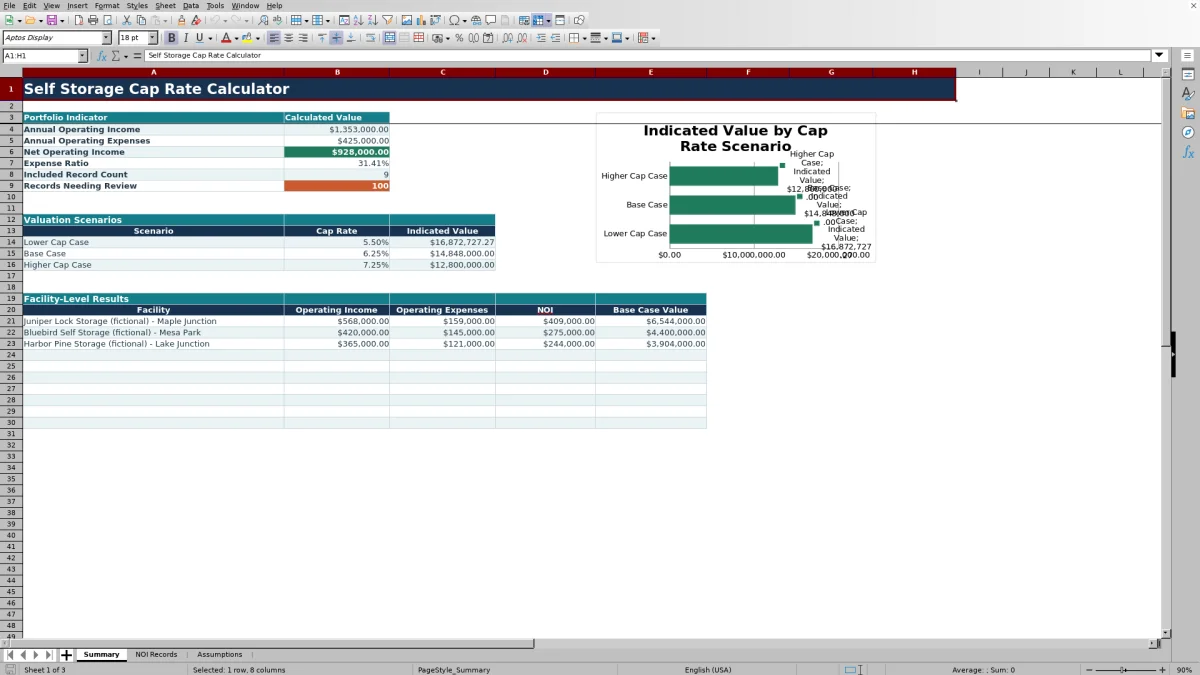
This self storage cap rate calculator is an Excel workbook that derives annual net operating income from operating income and expense records, then estimates indicated value under three capitalization-rate scenarios.
Facility owners, managers, regional operators, and acquisition teams can use the spreadsheet to organize up to 100 annual records, identify entries needing attention, and compare portfolio and facility-level results.
How this template can help
- Consolidates annual operating income and expense records in one structured worksheet.
- Shows how lower, base, and higher cap-rate assumptions affect indicated value.
- Flags incomplete records and facility or owner names that are not on the controlled lists.
- Provides portfolio metrics and facility-level NOI and base-case values for up to 10 facilities.
What the workbook contains
How to get started
1. Set the assumptions
Open the Assumptions sheet, review the three editable cap rates, and update the fictional facility and owner lists. Cap-rate entries must be between 1% and 25%.
2. Enter annual records
On NOI Records, add one annual income or expense item per row. Complete the facility, item, period, amount, owner, status, and due-date fields, using the pale-yellow cells for inputs.
3. Resolve record issues
Check the Review Flag column for incomplete fields or names that are not on the controlled lists. Confirm that each included line is classified as Operating Income or Operating Expense; Review and Exclude entries do not enter NOI.
4. Read the valuation results
Open Summary to review annual income, operating expenses, NOI, expense ratio, included-record count, review count, three portfolio valuation scenarios, and facility-level base-case values.
How NOI and cap-rate value are calculated
The workbook calculates NOI by summing amounts marked Operating Income and subtracting amounts marked Operating Expense. Records marked Review or Exclude do not enter the calculation.
Indicated value equals positive NOI divided by the selected cap rate. The Summary sheet also calculates the expense ratio by dividing annual operating expenses by annual operating income.
Worked self storage valuation scenario
Input: Assume a fictional facility records $600,000 of annual operating income and $240,000 of annual operating expenses. Both records use an included status, producing NOI of $360,000.
Result: At the workbook's default rates, the indicated values are approximately $6,545,455 at 5.50%, $5,760,000 at 6.25%, and $4,965,517 at 7.25%.
Interpretation: The income and expense inputs remain constant, so the difference among the values comes entirely from the selected cap rate. The lower rate produces the highest indicated value.
Next decision: The acquisition or operations team can compare the scenarios with its supported cap-rate assumptions, verify the underlying record classifications, and select the scenario relevant to its analysis.
Common errors and solutions
The calculated Review Flag helps identify populated records that need attention before the results are used.
- If the flag says Complete required fields, enter the missing item, period, amount, owner, status, or due date.
- If it says Facility not listed or Owner not listed, select an existing controlled-list entry or update the corresponding list on Assumptions.
- If it says Review, change the status only after deciding whether the record should be Operating Income, Operating Expense, or Exclude.
- If a line does not affect NOI, confirm that its status is not Review or Exclude and that its amount is numeric.
Workbook limits and input boundaries
The operational workbook provides 100 record rows, three cap-rate scenarios, and controlled-list space for up to 10 facilities and 10 owners. The default permitted date range is January 1, 2020, through December 31, 2035, and the default maximum annual amount is $10,000,000; these limits are editable on Assumptions.
Scenario values remain blank when NOI or the applicable cap rate is missing, invalid, or nonpositive. Facility-level values also require both operating income and operating expense records. The workbook is focused on annual NOI and cap-rate comparisons rather than monthly forecasting, financing, or discounted cash flow analysis.
Comparison with a blank spreadsheet
Use the prepared workbook when its verified fields and calculations fit the facility task. Start with a blank spreadsheet when you need a different model and can build and test every field and formula.
| Method | Setup | Calculations and review | Practical fit |
|---|---|---|---|
| This Excel workbook | Use the prepared structure in the validated file | Review the documented calculations and results | Local editable workflow supported by the workbook |
| Blank spreadsheet | Create the structure from scratch | Build and test every formula and control | A different model designed for the facility |
Reading portfolio and facility-level results
The portfolio section reports total operating income, total operating expenses, NOI, expense ratio, included-record count, and the number of nonblank review flags. The scenario section divides portfolio NOI by each of the three cap rates.
The facility table separately aggregates income and expenses for each facility on the controlled list. It calculates facility NOI and applies the base-case cap rate when the facility has both income and expense records and positive NOI.
Using scenarios for the next operating or acquisition decision
The three cases provide cap-rate sensitivity rather than a promised property value. A lower cap rate raises the indicated value for unchanged NOI, while a higher cap rate lowers it.
Before selecting a scenario, confirm that annual amounts are current, expense classifications are consistent, excluded records are intentional, and the chosen cap rate fits the purpose of the analysis.
Frequently asked questions
What formula does the self storage cap rate calculator use?
The workbook calculates indicated value by dividing positive net operating income by the selected cap rate. NOI equals annual operating income minus annual operating expenses.
Which record statuses enter NOI?
Operating Income and Operating Expense records enter the calculation. Records marked Review or Exclude do not affect NOI unless their status is changed.
Why is an indicated value blank?
A value remains blank when required income, expense, NOI, or cap-rate inputs are missing or invalid. The valuation formulas also require positive NOI and a positive cap rate.
Can I change the default cap rates?
Yes. The lower, base, and higher rates are editable on the Assumptions sheet. The validated input range is 1% through 25%, and the base rate also controls facility-level indicated values.
Should I replace the sample facility and owner names?
Yes. The supplied names and financial entries are fictional examples. Replace them with the facilities, owners, and annual operating records relevant to your analysis.
About the editors

Casey MonroeFacility operations editor

Elliot ParkFinance and performance editor