This self storage loan amortization schedule is an Excel workbook for facility owners, managers, regional operators, and acquisition teams that need to model monthly debt payments. It separates scheduled payments, extra payments, interest, principal, and ending balances for a selected loan.
The XLSX includes a loan register, selection controls, a 360-period amortization schedule, and summary indicators. Its sample facilities and owners are fictional, and the workbook models loan amounts without initiating or verifying payments.
How this template can help
- See how each modeled monthly payment is divided between principal and interest.
- Test recurring or period-specific extra payments and observe their effect on payoff timing and balances.
- Maintain financing assumptions for up to 100 self-storage facility loans in one workbook.
- Use summary totals and a principal-versus-interest chart to communicate modeled debt results.
What the workbook contains
How to get started
1. Enter the facility loan assumptions
Use the pale-yellow cells on the Loans sheet to enter a unique Loan ID, facility, owner, original principal, annual rate, term, first due date, default extra payment, status, and notes.
2. Select the loan to model
Enter its Loan ID in cell B3 on the Assumptions sheet. The workbook retrieves the corresponding terms and calculates the scheduled monthly payment and maturity when Excel recalculates.
3. Set any period-specific extra payments
On the Schedule sheet, leave an Extra Payment Override cell blank to use the loan's default extra payment. Enter zero to suppress the default for that period, or enter another permitted amount to model a one-period override.
4. Inspect the schedule and summary
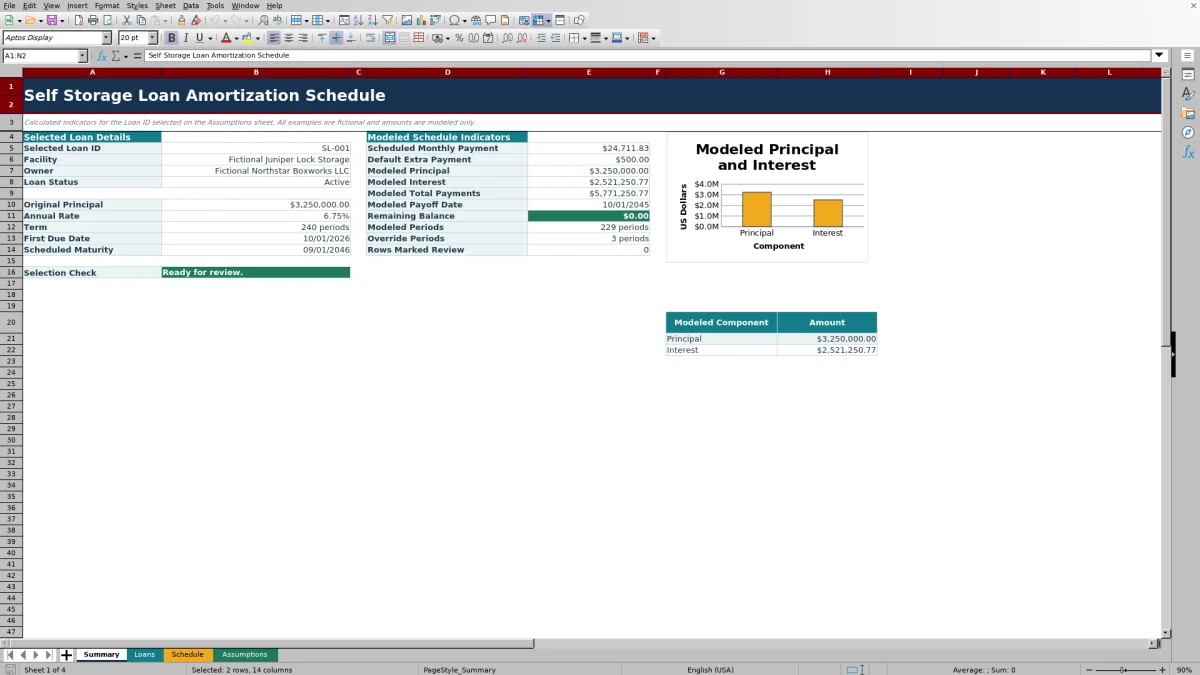
Use the Schedule sheet to examine due dates, interest, principal, and ending balances. Use the Summary sheet to inspect modeled totals, payoff timing, remaining balance, override periods, and rows marked Review.
What the Self Storage Loan Schedule Models
The workbook creates a monthly debt split for one selected facility loan. Each active period shows the due date, beginning balance, scheduled payment, applied extra payment, interest, principal, ending balance, and total modeled payment.
Interest is calculated monthly from the beginning balance and the selected annual rate divided by 12. The schedule ends when the balance reaches zero or the selected term reaches its maximum number of periods.
Worked Self Storage Facility Loan Scenario
Example input: A fictional facility has a $3,250,000 original principal, a 6.75% annual rate, a 240-month term, an October 1, 2026 first due date, and a $500 default extra payment.
Modeled result: Excel calculates the scheduled monthly payment, builds the monthly balance schedule, applies the default extra amount where no override is entered, and reports modeled principal, interest, total payments, payoff date, and remaining balance.
Interpretation: If the modeled payoff date occurs before the scheduled maturity, the extra principal is accelerating repayment. The principal-versus-interest chart also shows how much of the modeled total is allocated to each component.
Next decision: The operator can test a zero override for a cash-constrained month or a larger permitted override for a stronger operating month, then compare the resulting payoff timing and total modeled interest.
How Extra Payment Overrides Work
In the Extra Payment Override column, blank means default. The schedule uses the recurring extra payment stored with the selected loan when the override cell is empty.
- Leave the cell blank to apply the default extra payment.
- Enter zero to suppress the default for that period.
- Enter another permitted amount to replace the default for that period.
The applied extra payment is limited so that the modeled payment does not exceed the amount needed to satisfy the remaining principal and current-period interest.
Common Errors and Solutions
The Selection Check identifies a missing Loan ID, an ID not found in the Loans sheet, or a duplicate ID. Enter one unique Loan ID within the available loan register and confirm that its required principal, rate, term, and first due date fields are populated.
The Limit Check flags inconsistent control values, such as a maximum term outside the supported range or an earliest date later than the latest date. Correct the editable limits on the Assumptions sheet before entering affected loan data.
- If payment or maturity cells are blank, check the principal, annual rate, term, and first due date.
- If the schedule is blank, confirm that the selected Loan ID exists and that its term is populated.
- If an extra payment differs from expectations, remember that zero suppresses the default while a blank cell uses it.
- If a row is marked Review, inspect its status and notes for the modeled period.
Workbook Capacity and Modeling Limits
The Loans sheet supports 100 loan rows, and the Schedule sheet supports up to 360 monthly periods. The current editable controls set a 25% maximum annual rate, a $100,000,000 maximum original principal, a $1,000,000 maximum extra payment, and first due dates from January 1, 2016 through December 31, 2066.
The formulas use a fixed annual rate divided by 12. The workbook does not include dedicated fields for variable-rate resets, lender fees, escrow, irregular day-count conventions, or transaction posting. It models loan amounts and does not initiate payments, verify posted balances, or provide an official payoff quote.
Comparison with a blank spreadsheet
Use the prepared workbook when its verified fields and calculations fit the facility task. Start with a blank spreadsheet when you need a different model and can build and test every field and formula.
| Method | Setup | Calculations and review | Practical fit |
|---|---|---|---|
| This Excel workbook | Use the prepared structure in the validated file | Review the documented calculations and results | Local editable workflow supported by the workbook |
| Blank spreadsheet | Create the structure from scratch | Build and test every formula and control | A different model designed for the facility |
Using the Outputs in a Facility Debt Workflow
Facility owners and managers can use the monthly schedule to organize modeled debt service alongside operating forecasts. Regional operators can maintain consistent assumptions across multiple properties, while acquisition teams can test how loan size, rate, term, and extra principal affect modeled balances and payoff timing.
Because the Summary sheet consolidates the selected loan's terms and modeled indicators, it can serve as a concise internal reference. Source assumptions should remain aligned with current lender information whenever the workbook is updated.
Frequently asked questions
What does the self storage loan amortization schedule show?
It shows up to 360 monthly periods with the due date, beginning balance, scheduled payment, applied extra payment, interest, principal, ending balance, and total modeled payment for the selected loan.
How does the workbook select a facility loan?
Enter a Loan ID in Assumptions cell B3. VLOOKUP formulas retrieve the matching facility, owner, principal, rate, term, first due date, default extra payment, status, calculated payment, and scheduled maturity from the Loans sheet.
Can I model extra principal payments?
Yes. Store a recurring default extra payment with the loan, then use the Schedule sheet for period-specific overrides. A blank override uses the default, zero suppresses it, and another permitted amount replaces it for that period.
How many loans and payment periods does the Excel workbook support?
The Loans sheet has space for up to 100 loan records. The selected loan's amortization schedule can contain up to 360 monthly periods.
Does this workbook replace a lender statement or servicing portal?
No. It is an internal modeling workbook based on entered assumptions. It does not initiate or verify payments, reproduce lender-posted transactions, or provide an official payoff quote.
About the editors

Casey MonroeFacility operations editor

Elliot ParkFinance and performance editor