This self storage profit and loss statement is an Excel workbook for recording monthly rental income, fees, merchandise sales, payroll, utilities, and other facility operating expenses.
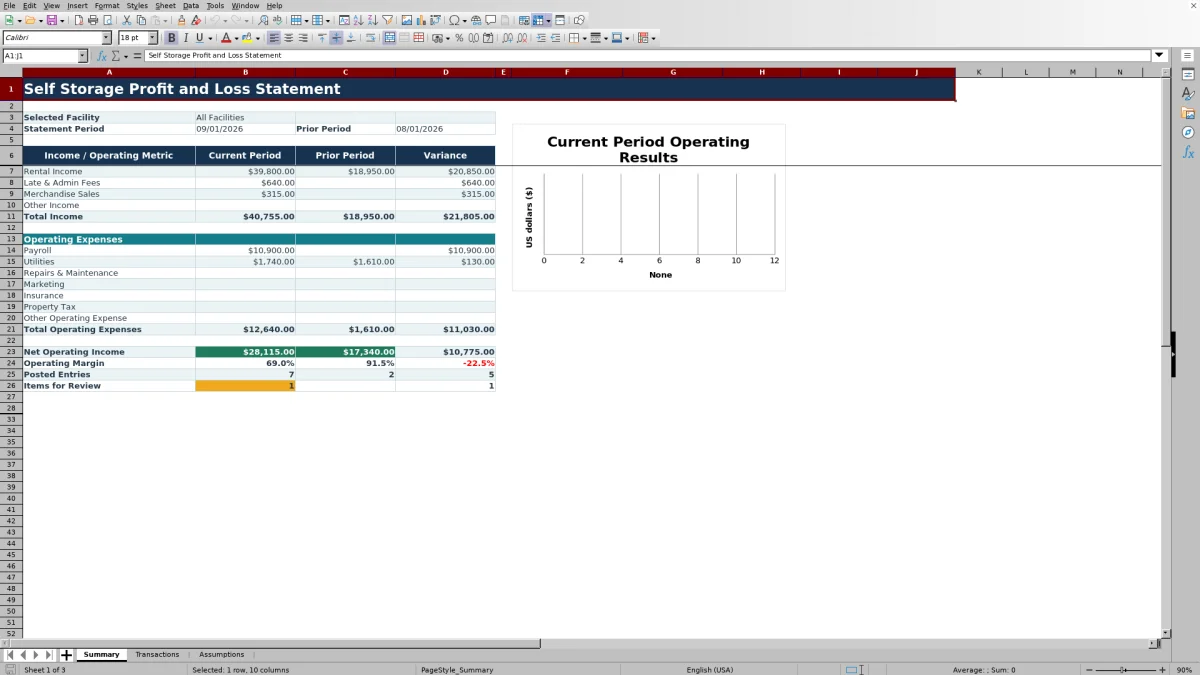
The XLSX combines transaction entry, reporting assumptions, and a monthly summary that shows current and prior-period results, variance, net operating income, operating margin, posted entries, and items for review.
How this template can help
- See monthly income, operating expenses, net operating income, and operating margin in one summary.
- Compare the selected statement month with the immediately preceding month.
- Report on all configured facilities or select one facility for a focused view.
- Identify missing, inconsistent, or excluded transaction entries before using the results.
What the workbook contains
How to get started
1. Set the reporting controls
Open Assumptions, choose All Facilities or one configured facility, and enter the statement period. The workbook converts the selected date to the first day of that month for reporting.
2. Confirm the operating lists
Review the fictional facility and owner names, available income and expense categories, large-amount threshold, and past-due grace days. Replace sample information carefully while preserving the ranges used by formulas and validation.
3. Enter monthly transactions
Use one Transactions row for each income or operating-expense item. Enter the facility, period, entry type, category, amount, owner, status, due date when applicable, and notes. Use the first day of the applicable month in the Period column.
4. Resolve flags and read the statement
Check the Review column for missing fields, period issues, category conflicts, or excluded statuses. Then open Summary to evaluate current and prior-period income, expenses, variance, net operating income, operating margin, posted entries, and items for review.
Monthly Self Storage Operating Statement
The workbook produces a monthly self storage profit and loss statement for one configured facility or all configured facilities. Its Summary separates Rental Income, Late & Admin Fees, Merchandise Sales, and Other Income from seven operating-expense categories.
Total Income and Total Operating Expenses feed Net Operating Income and Operating Margin. Current-month figures appear beside the immediately preceding month, with a dollar variance for each reported line.
How Transactions Flow Into the Summary
Each monthly record starts on Transactions with a facility, period, entry type, category, amount, owner, and status. Unit, due date, and notes provide supporting operational detail when applicable.
Received income and Paid expenses are the included statuses used for reporting. The Included Amount column returns valid income as a positive amount and valid expenses as a negative amount, while the Review column identifies records that do not meet the workbook's entry rules.
Worked Self Storage Scenario
Input: A fictional facility records September rental income of $20,000, fees of $500, and merchandise sales of $300. It also records $11,300 of paid operating expenses across payroll, utilities, maintenance, marketing, insurance, property tax, and other operating costs. August totals were $20,000 of income and $11,000 of operating expenses.
Result: The September Summary reports $20,800 of Total Income, $11,300 of Total Operating Expenses, $9,500 of Net Operating Income, and an operating margin of approximately 45.7%. Compared with August, income increases by $800, expenses increase by $300, and NOI increases by $500.
Interpretation: Income growth exceeds the increase in operating expenses for this fictional month, so NOI improves even though costs are higher.
Next decision: The manager can inspect the expense lines and underlying Transactions rows to identify which cost changed, confirm its status and documentation, and decide whether follow-up is needed before closing the monthly report.
Common Errors and Solutions
- If the Review column says the period needs attention, enter the first day of the month in the Period field.
- If required fields are missing, complete Facility, Period, Entry Type, Category, Amount, Owner, and Status.
- If the type and category conflict, select an income category for an Income entry or an expense category for an Expense entry.
- If an expected amount is absent from Summary, confirm that income is marked Received or that an expense is marked Paid. Pending and Void records are not included.
- If a facility, owner, or category is unavailable, update the corresponding Assumptions list and preserve the validation and formula ranges that depend on it.
Comparison with a blank spreadsheet
Use the prepared workbook when its verified fields and calculations fit the facility task. Start with a blank spreadsheet when you need a different model and can build and test every field and formula.
| Method | Setup | Calculations and review | Practical fit |
|---|---|---|---|
| This Excel workbook | Use the prepared structure in the validated file | Review the documented calculations and results | Local editable workflow supported by the workbook |
| Blank spreadsheet | Create the structure from scratch | Build and test every formula and control | A different model designed for the facility |
Workbook Limits and Scope
The Transactions sheet contains 150 preformatted entry rows, and its date validation covers 2021 through 2031. Summary compares only the selected month with the immediately preceding month.
The workbook uses fixed summary categories and currently configured lists for facilities and owners. It does not include budget variance, annual trend reporting, occupancy metrics, a balance sheet, a cash flow statement, or automated bank-feed imports. Adding rows, categories, owners, or facilities may require coordinated updates to formulas, validation ranges, and assumption lists.
Using the Results in Monthly Operations
Facility owners and managers can use the category variances to investigate changes in rental income, fees, payroll, utilities, maintenance, and other operating costs. Regional operators can switch between a selected facility and the consolidated All Facilities view.
Acquisition teams can use the statement as a structured monthly operating snapshot when the available transaction detail and fixed categories match the information being evaluated. Posted Entries and Items for Review provide context for whether the displayed totals are supported by completed records.
Frequently asked questions
What income and expense categories are included?
Income categories are Rental Income, Late & Admin Fees, Merchandise Sales, and Other Income. Expense categories are Payroll, Utilities, Repairs & Maintenance, Marketing, Insurance, Property Tax, and Other Operating Expense.
Can the Excel workbook report more than one self storage facility?
Yes. Summary can report All Facilities or one selected facility from the configured list. The supplied list contains two fictional facilities; adding more facilities may require extending the related assumption, validation, and selection ranges.
How many transaction rows are available?
Transactions provides 150 preformatted rows, covering rows 4 through 153. Each row includes input fields, an Included Amount formula, and a Review formula.
Which statuses are included in the profit and loss statement?
Income is included when its status is Received, and an expense is included when its status is Paid. Pending and Void entries do not contribute to the reported totals.
Can I change the facilities, owners, or categories?
You can replace the fictional facility and owner information in Assumptions. Categories are also tied to the assumption lists and Summary structure, so changes should be coordinated with the associated formulas and validation ranges.
About the editors

Casey MonroeFacility operations editor

Elliot ParkFinance and performance editor