This Excel workbook helps self-storage facility owners, managers, regional operators, and acquisition teams organize autopay enrollment status by facility, unit, billing period, account owner, and amount.
The XLSX tracks consent dates, effective dates, payment method types, token references, due dates, notes, and formula-generated review results. It includes a summary dashboard and editable assumptions while directing users not to enter card or bank account details.
How this template can help
- Monitor autopay enrollment status and tracked amounts across facilities and units.
- Keep consent dates, effective dates, due dates, and token references in one structured tracker.
- Identify incomplete records, upcoming due dates, high amounts, and exception statuses that need follow-up.
- Review enrollment counts, rates, amounts, and status distribution from a formula-driven summary.
What the workbook contains
How to get started
1. Review the assumptions
Open the Assumptions sheet and confirm the due-soon window, high amount threshold, enrollment status options, and payment method options. The defaults are seven days and $500.
2. Enter enrollment records
Use one prepared row per account or unit on the Enrollment Tracker sheet. Complete the facility, unit, billing period, amount, account owner, enrollment status, due date, and any other applicable fields.
3. Record consent and token details safely
Add consent and effective dates for Enrolled or Scheduled records. Select a payment method and enter only a system or processor token reference; never enter a full card number, bank account number, or security code.
4. Resolve warnings and review the summary
Check the Review Result column for missing information or exceptions. Then use the Summary sheet to review status counts, enrollment rate, amounts, relevant dates, due-soon records, and the status chart.
Organize Autopay Enrollment Operations
The workbook provides 100 prepared rows for tracking facility, unit, billing period, amount, account owner, enrollment status, consent date, effective date, payment method, token reference, due date, and notes. Formula-generated Review Result cells evaluate populated rows, while blank prepared rows are excluded from the summary's prepared record count.
Filters on the tracker help operators focus on a facility, status, date, or exception. The frozen heading row keeps field names visible while moving through the prepared range.
Worked Self-Storage Enrollment Scenario
Input: A manager enters the fictional facility Harbor Row Storage, unit D-112, a $135 billing amount, Scheduled status, a consent date of 09/18/2026, an effective date of 10/01/2026, Card token as the payment method, tok_demo_harbor_04 as the token reference, and a due date of 10/05/2026.
Result: The tracker evaluates the populated row, and the Summary sheet includes the record in the Scheduled count and tracked amount. It does not include the $135 in the Enrolled amount while the status remains Scheduled.
Interpretation: The account has enrollment details on file but is not yet classified as Enrolled. Whether it appears in the due-soon count depends on the current date and the editable due-soon window.
Next decision: After confirming activation through the appropriate source system, the manager can update the status and review whether the summary totals change as expected.
Common Errors and Solutions
Common fixes: If a row reports a missing core field, inspect the facility, unit, billing period, amount, account owner, enrollment status, and due date. Enrolled and Scheduled records also require consent and effective dates for the visible review logic.
- If Excel rejects an amount, enter a nonnegative number within the validated range.
- If Excel rejects a date, use a valid date within the workbook's permitted range.
- If a status or payment method does not match, select an available dropdown option rather than typing a variation.
- If a token is unavailable, select No method on file instead of entering raw payment credentials.
- If a record is an operational exception, use Exception Review and explain the issue in Notes.
Summary Metrics and Follow-Up
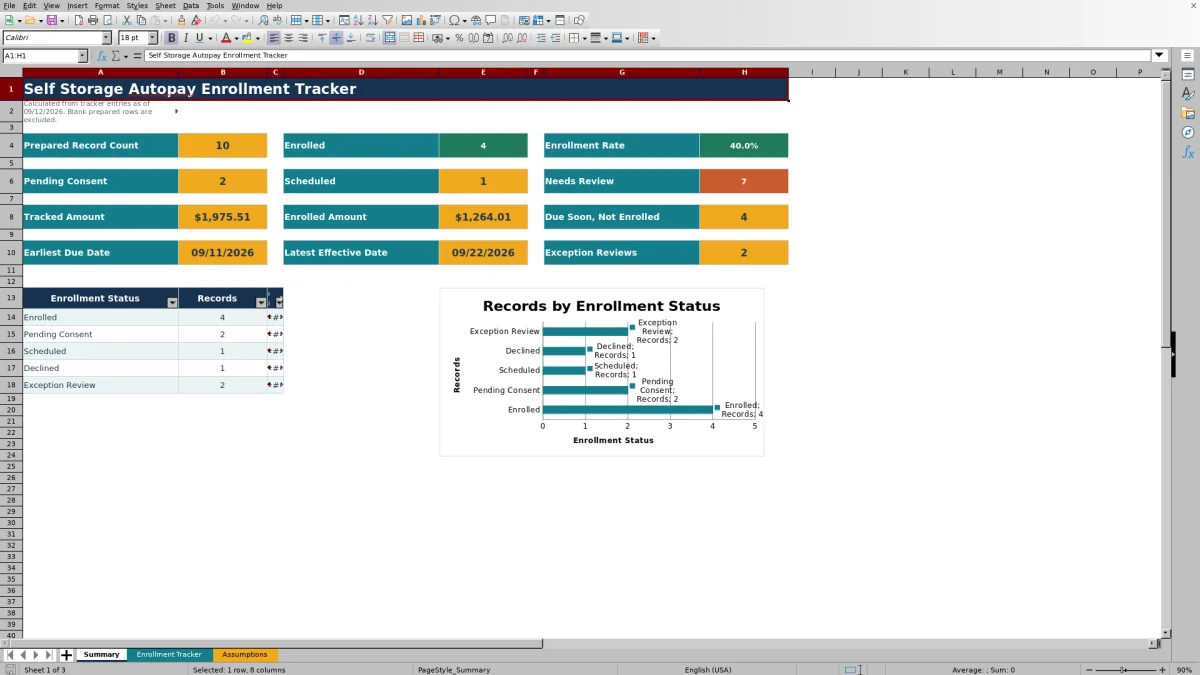
The Summary sheet calculates prepared record count, Enrolled count, enrollment rate, Pending Consent count, Scheduled count, records needing review, tracked amount, Enrolled amount, due-soon records that are not Enrolled, earliest due date, latest effective date, and Exception Review count.
A status section reports record counts and amounts for the five configured enrollment statuses, and one chart displays status record counts. These outputs help a facility or regional operator decide which records to investigate next without initiating a transaction.
Workbook Limits and Data Controls
The workbook tracks enrollment information but does not create payments, send notices, or update external systems. It records token references only; users should not enter card numbers, bank account numbers, security codes, or other raw payment credentials. A consent date is a tracking field and does not store the underlying consent documentation.
The prepared tracker range ends at row 104, providing 100 entry rows from rows 5 through 104. Due-soon calculations use TODAY(), so results change with the calculation date. Date validation spans from ten years before the current year through ten years after it, and the editable assumptions accept a due-soon window from 1 to 60 days and a high amount threshold from $0 to $100,000.
Comparison with a blank spreadsheet
Use the prepared workbook when its verified fields and calculations fit the facility task. Start with a blank spreadsheet when you need a different model and can build and test every field and formula.
| Method | Setup | Calculations and review | Practical fit |
|---|---|---|---|
| This Excel workbook | Use the prepared structure in the validated file | Review the documented calculations and results | Local editable workflow supported by the workbook |
| Blank spreadsheet | Create the structure from scratch | Build and test every formula and control | A different model designed for the facility |
Using the Tracker Across a Portfolio
Regional operators and acquisition teams can use the Facility and Unit fields to consolidate enrollment records from multiple locations in one working file. Filtering by facility or status supports focused follow-up, while the summary presents combined totals for the populated tracker range.
Before relying on portfolio totals, confirm that facilities use the same status definitions, payment method labels, date conventions, and review thresholds. Consistent inputs make the calculated counts and amounts easier to interpret.
Frequently asked questions
Does this Excel tracker store card or bank account data?
No such data is required. The workbook is designed for payment method labels and token references only. Do not enter full card numbers, bank account numbers, security codes, or other raw payment credentials.
How many enrollment records can the workbook hold?
The Enrollment Tracker includes 100 prepared entry rows, covering rows 5 through 104. Each prepared row also contains a formula-generated Review Result.
Which enrollment statuses are available?
The configured options are Enrolled, Pending Consent, Scheduled, Declined, and Exception Review. The dropdown list is supplied through the Assumptions sheet.
What does the Summary sheet calculate?
It calculates enrollment counts and rate, tracked and Enrolled amounts, due-soon records that are not Enrolled, earliest due date, latest effective date, review counts, exception counts, and a breakdown by enrollment status.
Can the due-soon window and high amount threshold be changed?
Yes. The Assumptions sheet provides an editable due-soon window with an allowed range of 1 to 60 days and an editable high amount threshold from $0 to $100,000. The supplied defaults are seven days and $500.
About the editors

Casey MonroeFacility operations editor

Elliot ParkFinance and performance editor