The Self Storage Unit Mix Revenue Model is an Excel workbook for comparing unit count, rentable square footage, street rate, physical occupancy, economic occupancy, and modeled revenue across unit sizes and climate classes.
Facility owners, managers, regional operators, and acquisition teams can enter up to 100 unit-mix lines and summarize Included lines at the portfolio level. The supplied records are fictional, so replace or confirm the assumptions before using the results in an operating decision.
How this template can help
- Compare unit sizes and climate classes using consistent revenue calculations.
- See how unit count, street rate, and economic occupancy affect modeled monthly revenue.
- Measure each Included line's contribution to modeled revenue.
- Consolidate portfolio totals for units, rentable square feet, occupancy, and revenue.
What the workbook contains
How to get started
1. Review the assumptions
Open the Assumptions sheet and confirm the facility, climate class, status, owner, unit type, dimension, and model-limit entries.
2. Enter the unit mix
On the Unit Mix sheet, select a facility and unit type, then enter the climate class, unit count, street rate, physical occupancy, and economic occupancy. Add the owner, period, due date, and notes as needed.
3. Set each line's status
Choose Included for lines that should flow into portfolio totals. Use Draft or Hold for Review for lines that should remain outside those totals, and resolve any displayed input flags.
4. Read the results
Review calculated square footage, occupied units, gross potential monthly rent, modeled monthly revenue, revenue contribution, and revenue per square foot. Then use the Summary sheet to assess portfolio totals and climate-class revenue.
What the Excel revenue model calculates
The workbook converts unit-level operating assumptions into comparable financial outputs. Width, length, and unit count determine rentable square feet; unit count and street rate determine gross potential monthly rent; and economic occupancy converts that potential rent into modeled monthly revenue.
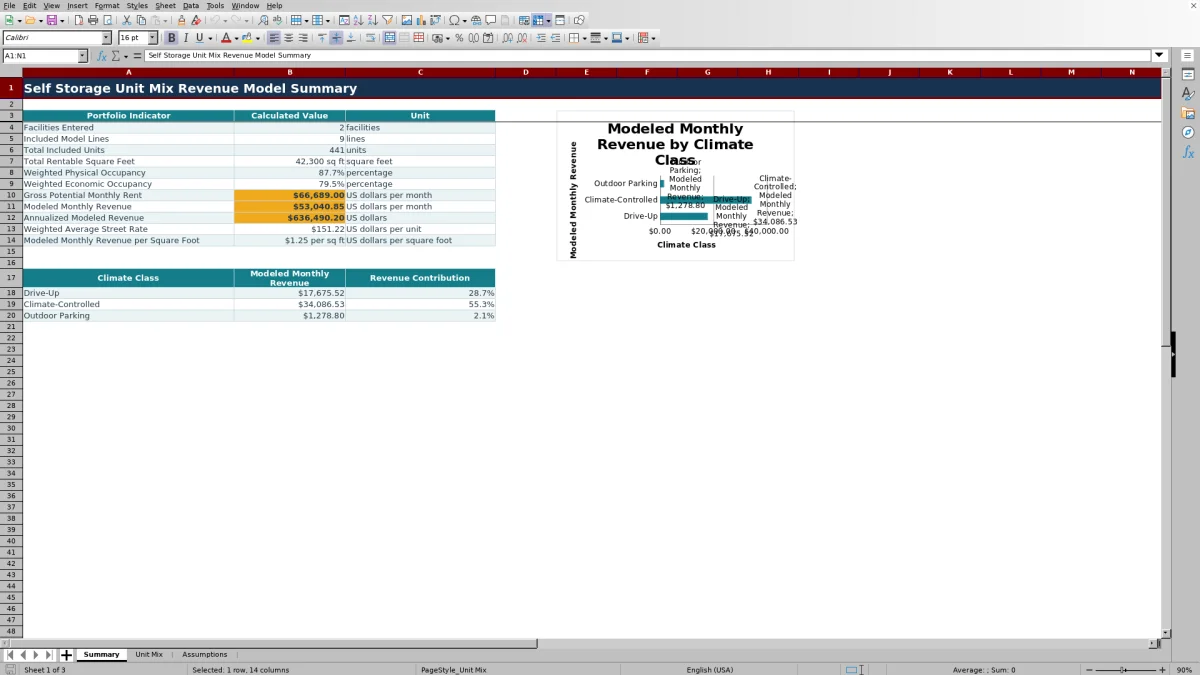
Included lines feed the main portfolio totals. The Summary sheet reports included units, square feet, weighted physical occupancy, weighted economic occupancy, gross potential monthly rent, modeled monthly revenue, annualized modeled revenue, weighted average street rate, and modeled monthly revenue per square foot.
Worked scenario: fictional climate-controlled unit line
Input: A fictional facility enters 80 climate-controlled 10x10 units at a $169 street rate, 91% physical occupancy, and 85% economic occupancy.
Result: The line produces 8,000 rentable square feet, 72.8 occupied units, $13,520 of gross potential monthly rent, $11,492 of modeled monthly revenue, and approximately $1.44 of monthly revenue per square foot.
Interpretation: Physical occupancy is higher than economic occupancy, indicating that collected or effective revenue is not keeping pace with occupied capacity under the entered assumptions.
Next decision: The operator can check concessions, discounts, collections, and achieved rates before deciding whether to revise the street rate or economic occupancy assumption.
Comparison with a blank spreadsheet
Use the prepared workbook when its verified fields and calculations fit the facility task. Start with a blank spreadsheet when you need a different model and can build and test every field and formula.
| Method | Setup | Calculations and review | Practical fit |
|---|---|---|---|
| This Excel workbook | Use the prepared structure in the validated file | Review the documented calculations and results | Local editable workflow supported by the workbook |
| Blank spreadsheet | Create the structure from scratch | Build and test every formula and control | A different model designed for the facility |
Common errors and solutions
Start with the flag shown on the Unit Mix row. “Review incomplete inputs” means one or more required model fields are blank. Complete the facility, unit type, climate class, count, rate, occupancy, status, owner, and period fields.
If dimensions remain blank, select a unit type that exactly matches the Assumptions list. If a line does not appear in portfolio totals, confirm that its status is Included. A “Review model inputs” message can indicate an excessive count or rate, occupancy outside the configured range, or economic occupancy above physical occupancy.
Workbook limits and expansion considerations
Configured limits include 100 Unit Mix rows from row 5 through row 104 and reference-list ranges from row 5 through row 16. Dates are validated from January 1, 2021, through December 31, 2036.
The file uses fixed cell ranges rather than Excel tables or defined names. Adding rows beyond the configured areas requires corresponding updates to formulas, dropdown validation, filters, formats, and Summary references. The model also excludes concessions, bad debt, fees, expenses, and cash flow unless their effects are reflected in the economic occupancy assumptions.
Reading climate-class revenue contribution
Climate contribution helps operators see how Drive-Up, Climate-Controlled, and Outdoor Parking lines contribute to modeled monthly revenue. The accompanying Summary chart compares modeled revenue across those three classes.
The climate-class revenue amounts use Included lines. However, the Summary contribution percentages divide those amounts by total modeled revenue on the Unit Mix sheet. If Draft or Hold for Review lines contain modeled revenue, verify the denominator before expecting the three displayed percentages to total 100%.
Using the model in an operating review
Begin with the portfolio indicators, then move to the Unit Mix rows that have the largest revenue contributions or unusual revenue per square foot. Compare physical occupancy with economic occupancy to identify lines where occupied capacity and modeled revenue realization differ.
Before changing rates or mix assumptions, reconcile the fictional or manually entered inputs with current facility records. Record the owner, reporting period, due date, and notes so the operating team can follow the basis for each modeled line.
Frequently asked questions
Which unit-mix lines appear in the portfolio summary?
The main portfolio totals use lines whose Status field is set to Included. Draft and Hold for Review lines remain available on the Unit Mix sheet but generally do not flow into those totals.
How does the workbook calculate modeled monthly revenue?
Gross potential monthly rent equals unit count multiplied by street rate per unit. Modeled monthly revenue equals that gross potential rent multiplied by economic occupancy.
How are physical and economic occupancy used differently?
Physical occupancy is multiplied by unit count to estimate occupied units. Economic occupancy is multiplied by gross potential monthly rent to calculate modeled monthly revenue.
Can I add more than 100 unit-mix lines?
The configured input area supports 100 lines in rows 5 through 104. Additional lines require extending the formulas, validation ranges, formatting, filters, and Summary references.
What can trigger a model input flag?
A flag can appear when required inputs are missing, unit count or street rate exceeds an editable review limit, occupancy falls outside the configured range, or economic occupancy is higher than physical occupancy.
About the editors

Casey MonroeFacility operations editor

Elliot ParkFinance and performance editor