This self storage gate access exception log is an Excel workbook for documenting failed entries, after-hours attempts, temporary authorizations, gate equipment issues, and access detail mismatches that require manager review.
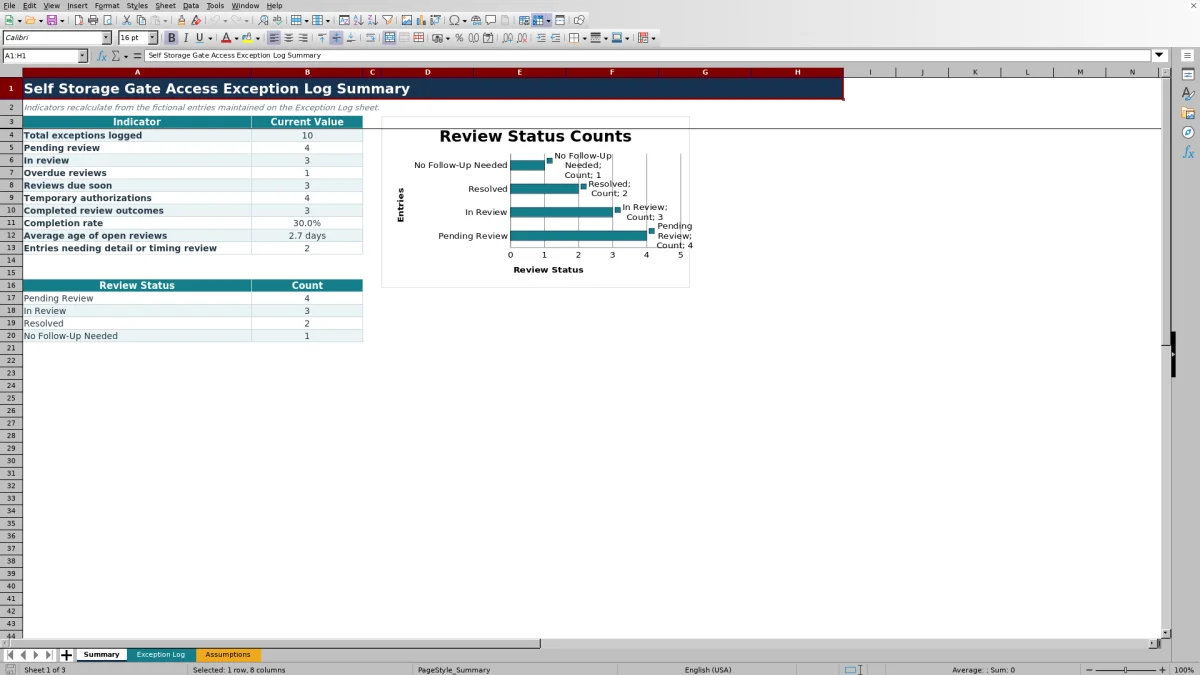
The XLSX includes a 100-row exception log, validated entry fields, calculated review ages and flags, editable assumptions, summary indicators, and a review-status chart. Its fictional sample records demonstrate the workflow without connecting to or controlling a facility gate system.
How this template can help
- Keeps gate access exceptions, outcomes, owners, due dates, and notes in one consistent record.
- Shows pending, in-review, completed, overdue, and due-soon activity on a summary sheet.
- Flags missing details, missing authorization hours, extended durations, and incomplete review timing.
- Lets managers edit facility choices, reviewer names, date boundaries, and operating thresholds.
What the workbook contains
How to get started
1. Review the local options
Open the Assumptions sheet and update the fictional facility names, review owners, dropdown choices, temporary authorization limits, due-soon window, and allowed date boundaries as needed.
2. Record each access exception
On the Exception Log sheet, enter the event date and time, facility, unit, exception type, access outcome, and notes. Enter authorization hours whenever the exception type is Temporary Authorization.
3. Assign and track the review
Select a review owner and status, then enter the review due date. Check the calculated Review Age and Review Flag columns for missing details, timing issues, or completed records.
4. Monitor the summary
Use the Summary sheet to review exception volume, open and completed work, overdue and due-soon reviews, completion rate, average age, and the chart of records by review status.
What the Gate Access Exception Log Tracks
Each log row creates a structured exception record covering the event date and time, facility, unit, exception type, access outcome, temporary authorization hours, review owner, review status, due date, notes, review age, and review flag.
The exception type list includes Failed Entry, After-Hours Attempt, Temporary Authorization, Gate Equipment Issue, and Access Detail Mismatch. The worksheet provides 100 entry rows and an autofilter across all 13 columns.
Manager Review Workflow
The owner, status, and due-date fields establish review ownership for each event. Available statuses are Pending Review, In Review, Resolved, and No Follow-Up Needed.
Review Age counts days from the event date for an open record. Resolved records and records marked No Follow-Up Needed do not display an age. Review Flag identifies missing details, missing temporary authorization hours, durations requiring review, completed records, missing due dates, overdue reviews, and reviews due soon.
Worked Scenario: An After-Hours Attempt
Input: A fictional Blue Mesa Self Storage event is entered for September 7, 2026, at 10:35 PM. The outcome is Logged Only, the status is In Review, and the review due date is September 13, 2026.
Result: When the workbook recalculates on September 12, 2026, Review Age displays 5 days and Review Flag displays Due Soon because the due date is within the two-day default window. The Summary sheet includes the record in its In Review and Reviews Due Soon counts.
Interpretation: The event remains open and is approaching its entered review deadline; the flag does not determine whether access should be granted.
Next decision: The assigned manager reviews the event notes and local records, then updates the status, due date, or follow-up details based on the facility's process.
Common Errors and Solutions
- Check required fields first: A Details Needed flag means one or more required event, outcome, owner, or status fields are blank.
- An Hours Needed flag means Temporary Authorization was selected without a duration in the authorization-hours field.
- A Duration Review flag means the entered temporary authorization exceeds the standard 24-hour assumption. Confirm the duration before updating the record.
- A Due Date Needed flag means an open record does not have a review due date.
- If an Overdue or Due Soon flag appears unexpectedly, verify the entered due date, the editable due-soon window, and the date used when Excel recalculates TODAY().
Workbook Limits and Editable Controls
This workbook is a documentation and review tool; it does not connect to gate hardware, change access permissions, or make access decisions. The validated log area contains 100 rows, from row 5 through row 104.
The default standard temporary authorization limit is 24 hours, the maximum validated entry is 168 hours, and the due-soon window is two days. The initial allowed log dates run from September 13, 2021, through September 12, 2027. Managers can edit these values on the Assumptions sheet.
Comparison: Excel Exception Log vs. Unstructured Incident Notes
The complete Excel workbook is more suitable when a facility or regional team needs repeatable fields, assigned follow-up, calculated flags, and aggregate reporting. Unstructured email or paper notes may be suitable for an isolated event when standardized tracking and summary calculations are not required.
| Criterion | Excel exception log | Email or paper incident notes |
|---|---|---|
| Entry structure | Uses consistent columns and validated choices for recurring exception records. | Format and level of detail can vary by author. |
| Follow-up | Records an owner, status, due date, age, and calculated review flag. | Depends on recipients or readers to identify and track the next action. |
| Operational reporting | Calculates summary indicators and displays review-status counts in a chart. | Requires manual consolidation before trends or totals can be reviewed. |
| Practical fit | Fits recurring facility or portfolio-level exception tracking within the 100-row log. | Fits occasional narrative documentation when no shared register is needed. |
Reading the Summary Indicators
The Summary sheet counts total exceptions, pending reviews, records in review, overdue reviews, due-soon reviews, temporary authorizations, completed outcomes, and entries needing detail or timing review. It also calculates completion rate and average age for qualifying open reviews.
The status chart compares Pending Review, In Review, Resolved, and No Follow-Up Needed. Use these results to locate records for follow-up rather than as a substitute for reviewing the underlying event information.
Frequently asked questions
What events belong in this Excel gate access exception log?
The available exception types cover failed entries, after-hours attempts, temporary authorizations, gate equipment issues, and access detail mismatches. Managers can edit the option list on the Assumptions sheet.
Does the workbook connect to or operate a gate system?
No. The workbook records events and manager follow-up only. It does not connect to gate hardware, grant access, deny access, or modify access credentials.
How are Review Age and Review Flag calculated?
Review Age uses TODAY() and the event date for open records. Review Flag checks required details, temporary authorization hours and duration, completion status, review due dates, and the editable due-soon window.
Can facilities, review owners, and limits be changed?
Yes. The Assumptions sheet contains editable facility and review-owner lists, status and outcome choices, temporary authorization thresholds, the due-soon window, and the earliest and latest permitted dates.
How many exception records does the workbook support?
The validated entry area contains 100 rows, covering rows 5 through 104 on the Exception Log sheet. The formulas for Review Age and Review Flag are populated across that same range.
About the editors

Casey MonroeFacility operations editor

Elliot ParkFinance and performance editor