This self storage insurance enrollment tracker is an Excel workbook for recording each unit’s coverage choice, proof status, effective date, monthly amount, follow-up owner, enrollment status, follow-up date, and notes.
The spreadsheet includes 120 entry rows, validated fields, calculated follow-up timing, review flags, a summary chart, and editable assumptions. Fictional sample records illustrate the workflow and can be replaced with facility data.
How this template can help
- Keep coverage choices, proof details, dates, amounts, ownership, and status in one unit-level register.
- See upcoming, missing, and past-due follow-up items without calculating date differences manually.
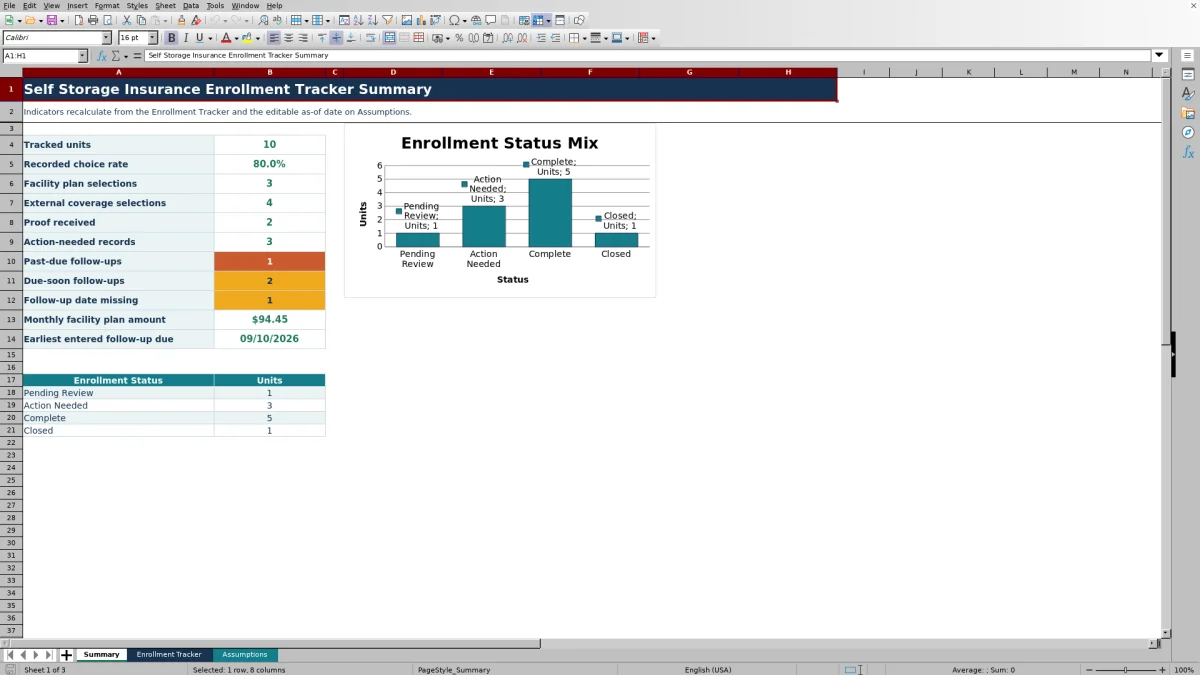
- Monitor enrollment counts, recorded choice rate, proof receipt, action-needed records, and monthly facility-plan amounts.
- Use consistent dropdown options across facilities while retaining space for notes and record-specific details.
What the workbook contains
How to get started
1. Confirm the review settings
Open the Assumptions sheet and set the as-of date, due-soon window, and monthly amount review threshold used by the workbook formulas.
2. Prepare the dropdown lists
Replace the fictional facility and follow-up owner entries with operating names. Confirm that the coverage, proof, and enrollment status choices match the administrative workflow.
3. Enter unit records
Use the Enrollment Tracker to enter the facility, unit, coverage choice, proof status, effective date, applicable monthly amount, owner, enrollment status, follow-up due date, and notes.
4. Review flags and summary results
Check Days to Follow-up and Review Flag for each populated row. Use the filter and Summary sheet to identify records that require updates or follow-up.
What the enrollment tracker records
The register organizes administrative insurance or protection-plan information by facility and unit. Staff can select a Coverage Choice of Facility Plan, External Coverage, Declined, or Pending Selection, then record the proof status, effective date, applicable monthly amount, owner, enrollment status, follow-up date, and notes.
Calculated columns remain separate from the entry fields so staff can distinguish entered information from formula results.
How follow-up calculations work
The Assumptions sheet supplies the as-of date and due-soon window. For a populated unit row with a follow-up date, Days to Follow-up shows the difference between that date and the as-of date.
The Review Flag formula checks assumptions, required fields, duplicate facility-and-unit combinations, the amount threshold, enrollment status, and follow-up timing. Summary counts then group relevant records as past due, due soon, or missing a follow-up date.
Worked scenario for an external coverage record
Consider a fictional unit at Lake Lantern Storage. The input is External Coverage, proof status Requested, effective date September 1, 2026, owner Morgan Reed, enrollment status Action Needed, and follow-up due September 20, 2026. With an as-of date of September 12 and a 14-day due-soon window, the result is 8 days to follow-up and a Due soon flag.
The interpretation is that the proof request remains open and its due date falls inside the configured window. The next decision is for the assigned owner to check the supporting record, update the proof and enrollment statuses, and revise or clear the follow-up date as appropriate.
Common errors and solutions
- If Check assumptions appears, enter valid values for the as-of date and due-soon window.
- If Complete record appears, fill the missing facility, coverage choice, proof status, owner, or enrollment status.
- If Duplicate unit appears, check whether the same facility-and-unit combination was entered more than once.
- If Amount review appears, compare the monthly amount with the threshold on the Assumptions sheet and correct either value if needed.
- If Set follow-up date appears, add a due date or update the enrollment status to reflect the current record.
Workbook limits and record controls
This Excel file is an administrative aid. It does not verify external coverage, inspect supporting documents, send notices, collect submissions, or update property management and insurance systems.
The workbook contains 120 preformatted entry rows. Its dropdown source ranges currently hold four facilities, four owners, four coverage choices, four proof statuses, and four enrollment statuses. Additional list capacity requires corresponding Excel range and validation updates.
Comparison with a blank spreadsheet
Use the prepared workbook when its verified fields and calculations fit the facility task. Start with a blank spreadsheet when you need a different model and can build and test every field and formula.
| Method | Setup | Calculations and review | Practical fit |
|---|---|---|---|
| This Excel workbook | Use the prepared structure in the validated file | Review the documented calculations and results | Local editable workflow supported by the workbook |
| Blank spreadsheet | Create the structure from scratch | Build and test every formula and control | A different model designed for the facility |
Using the summary for portfolio administration
The Summary sheet counts tracked units and reports the recorded choice rate, facility-plan selections, external coverage selections, proof received, action-needed records, follow-up timing, and monthly facility-plan amount. It also displays the earliest entered follow-up due date.
Facility managers can filter the underlying register before updating records, while regional operators and acquisition teams can use the consistent columns to organize current information received from multiple locations. Results remain dependent on complete, current entries and the selected as-of date.
Frequently asked questions
What information does the self storage insurance enrollment tracker capture?
It captures facility, unit, coverage choice, proof status, effective date, monthly amount, follow-up owner, enrollment status, follow-up due date, and notes. It also calculates days to follow-up and a review flag.
How many unit records can the Excel workbook hold?
The Enrollment Tracker provides 120 preformatted entry rows, covering rows 4 through 123.
Which fields use dropdown lists?
Facility, Coverage Choice, Proof Status, Follow-up Owner, and Enrollment Status use lists maintained on the Assumptions sheet.
Can the review date and thresholds be changed?
Yes. The Assumptions sheet contains editable fields for the as-of date, due-soon window, and monthly amount review threshold. Formula results recalculate from those settings.
Does the workbook send reminders or verify insurance coverage?
No. The workbook displays administrative review flags but does not send notices, verify supporting documents, or update external systems.
About the editors

Casey MonroeFacility operations editor

Elliot ParkFinance and performance editor